“Map the major hospitals in Boston for our sales team”
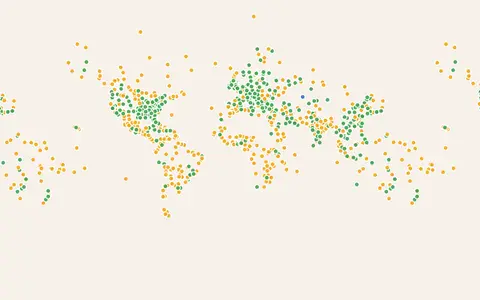
Finds real places of a kind in an area, adds each with a short description and a photo, and groups them.
Tell the AI what you need: your branches, a sales territory, every hospital in a city. It finds the real places, adds photos and details, groups them, and builds the map in front of you.
10 AI requests a month on FreeNo credit card required
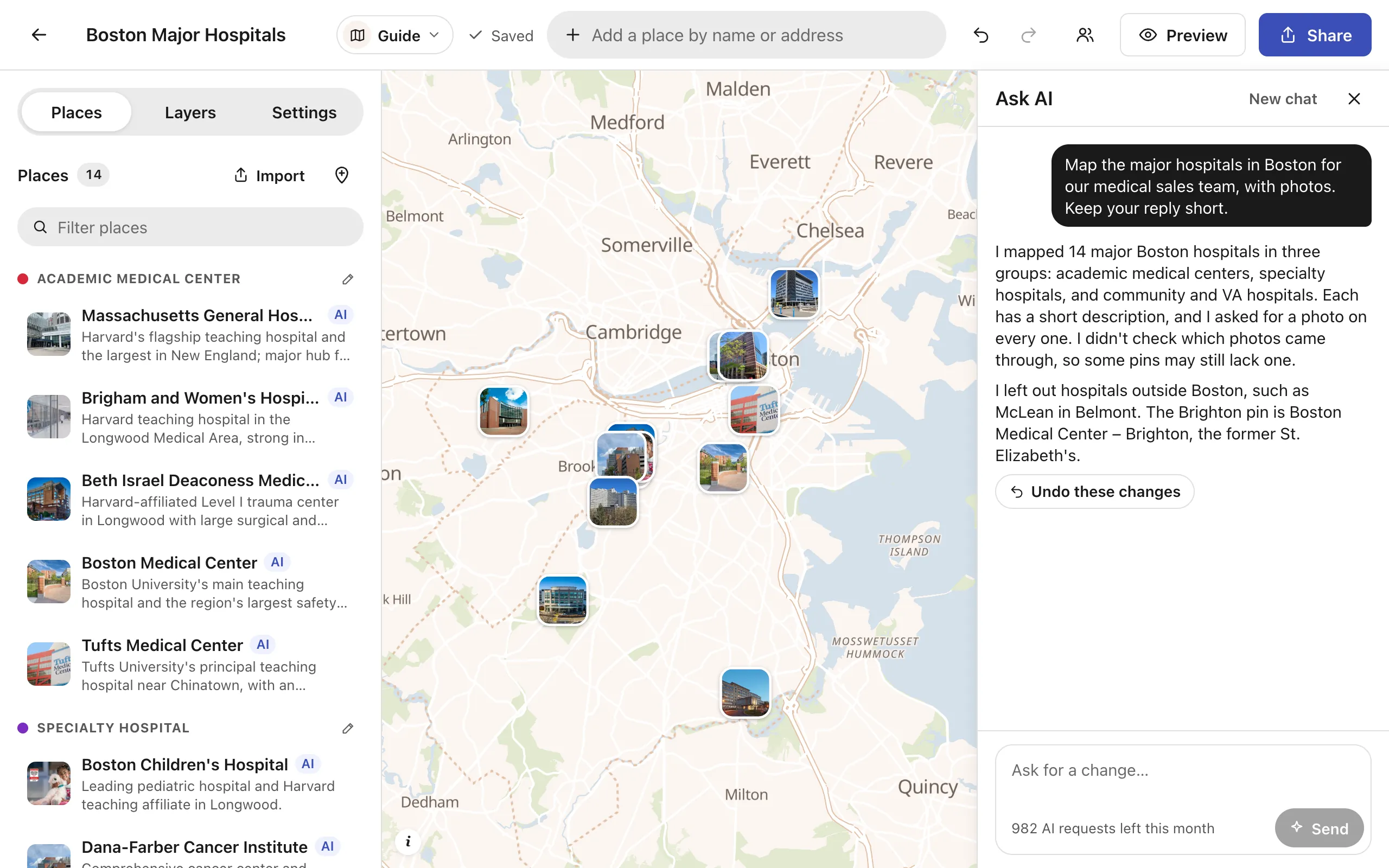
Start from an empty map or one you already have. Each request is one message, in your own words.
Finds real places of a kind in an area, adds each with a short description and a photo, and groups them.
Sorts the places already on your map into categories, and recolors or renames them in one go.
Adds fields of your own (prices, hours, bedrooms, a call button) and fills them where it knows the answer.
Draws routes between your places by car, bike, foot or transit, with the travel time of each.
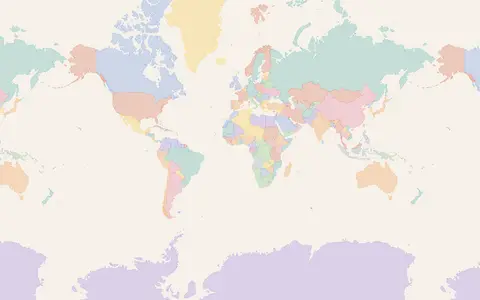
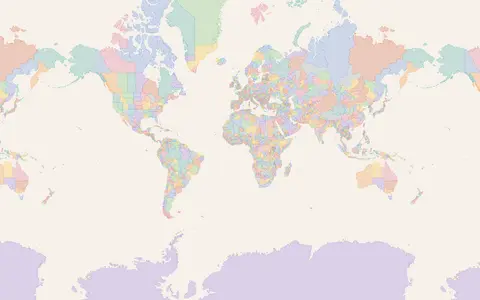
Adds countries, states, districts, cities, airports or ports from the data library, shaded, filtered and labeled.
Changes the map’s look and layout: the base map, pin size, place names, clustering, title and description.
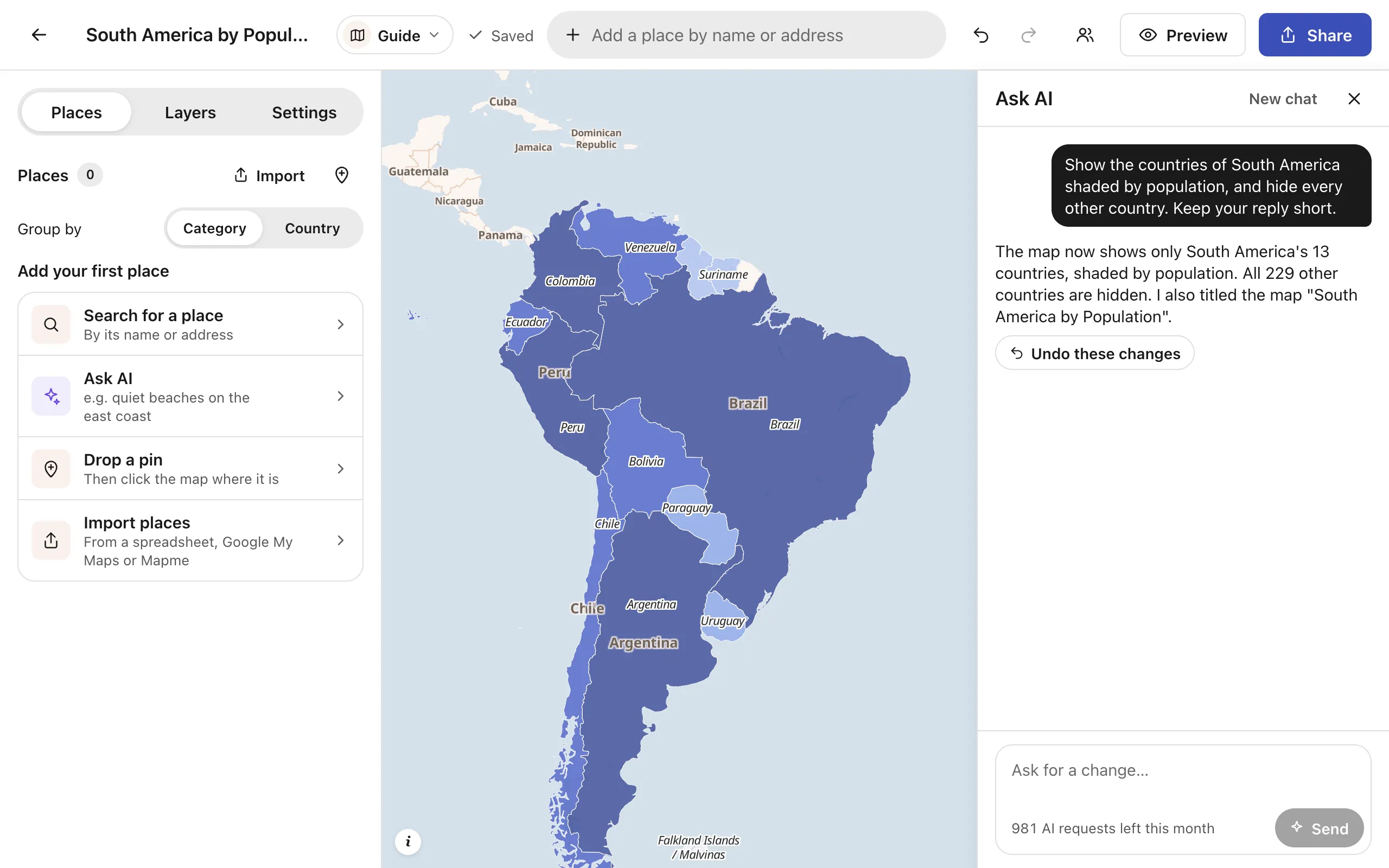
Ask for countries shaded by population, the states your territories cover, or the airports near your branches. The AI picks the data from an open library, adds it as a layer with its source credited, and can shade, filter and label it.
A map that sends customers to the wrong door costs more than it saves. So the AI works the way you’d want a careful colleague to.
Each place is looked up by its name and address, the way the editor’s search finds it. Anything it can’t find is skipped and reported, not invented.
It adds freely licensed photos from Wikipedia and Wikimedia Commons, and each keeps its photographer’s credit on your map.
Places the AI adds carry an AI tag in the editor until you’ve looked at them. Visitors to your map never see it.
Everything a request changed undoes together, so trying an idea costs nothing. A request that fails before changing anything isn’t counted.
The AI works on the map you have open, when you send it a request, and shows each change on the map as it happens.
Send us a message and we'll respond as soon as possible.
Contact Our TeamIt's Ask AI, in the Create Mappins editor: you describe a map, or a change to one, in plain words, and the AI makes it. It adds real places with photos and descriptions, sorts them into categories, adds fields, draws routes, adds data layers, and restyles the map.
Yes, on every plan: the Free plan includes 10 AI requests a month, Pro 200 and Business 1,000. Each message you send is one request, and a request that fails before changing anything is given back.
The AI looks each place up by its name and address with the same place search as the editor. A place it can't find is skipped and listed in its reply, never guessed.
It only adds freely licensed photos, from Wikipedia and Wikimedia Commons, and each one keeps its credit, which visitors can see on your map.
Places it adds are marked AI in the editor until you check them, and one Undo takes back everything a request changed. You can also just ask it to fix what it got wrong.
Yes. It can find places on your map by name, category, address or a missing photo, and change them together: recategorize them, fill in a field, add photos or put them in order.
Yes. It can add a layer from the data library, which has countries, states and provinces, districts, cities, airports, ports, rivers and more, then shade it by a number, show only some of it, or label it.
Sign up free and open Ask AI in the editor. Your first 10 requests each month are on us.
Free plan availableNo credit card required