You have a spreadsheet of locations: customers, dealers, branches, members, job sites. You want them on a map that people can actually use, not a screenshot pasted into a slide.
This guide turns an Excel file into an interactive map, step by step. We'll use a real example: a list of 37 bike dealers that becomes a dealer locator customers can search, filter and open on their phone. Here it is, the finished map, live:
What you need
- A spreadsheet with one place per row and a header row on top. Excel (
.xlsx) and CSV both work. Old.xlsfiles need saving as.xlsxfirst. - An address for each row, in one column or split across several (street, city, state, ZIP). If you already have latitude and longitude columns, those work too and skip the address lookup.
- Optional, but worth it: a column that sorts your places into groups (dealer type, region, sales rep), and any details people should see, like opening hours or phone numbers.
Want to follow along? Download the sample spreadsheet we use in this guide.
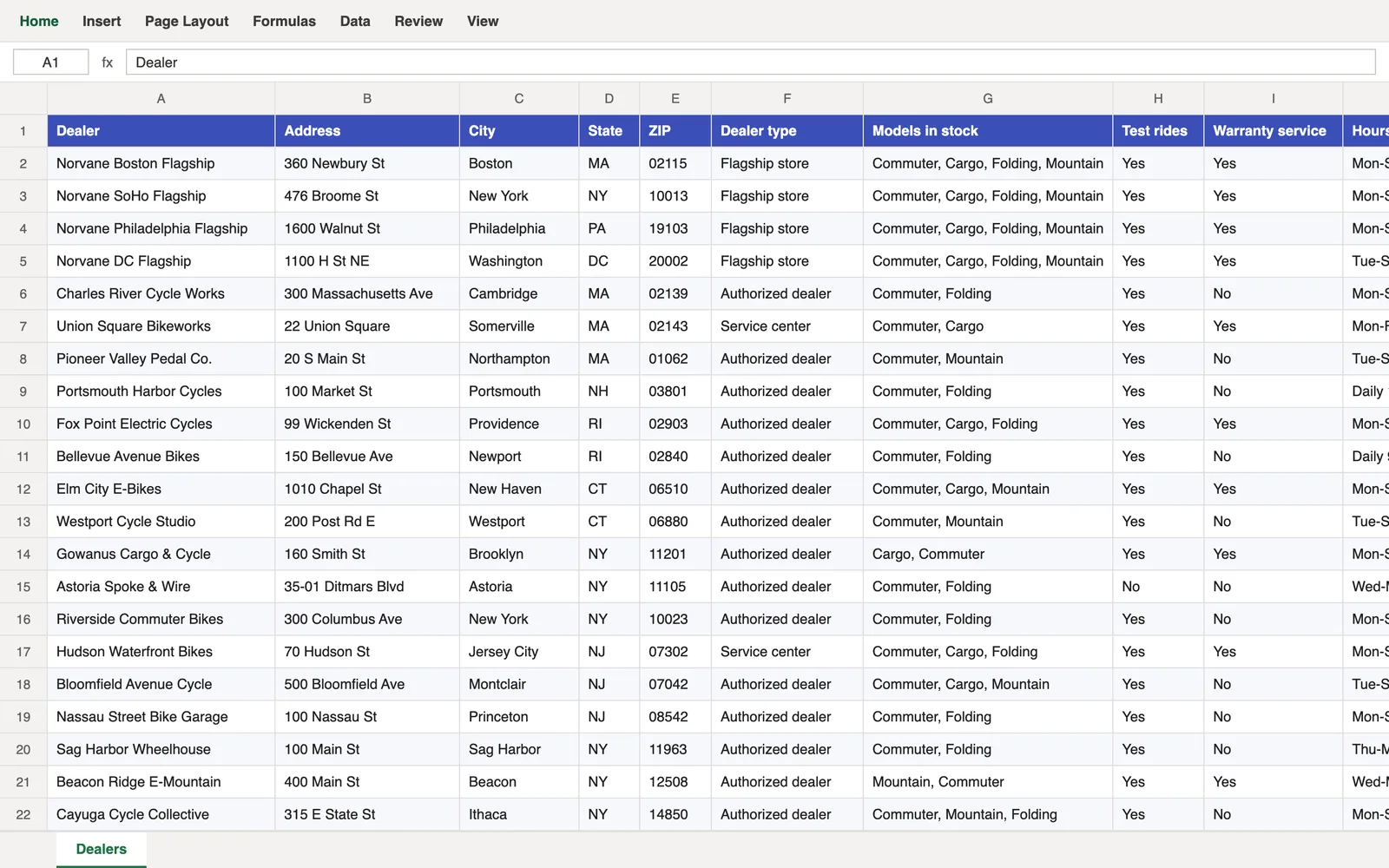
Step 1: Start a new map from your spreadsheet
Sign in to Create Mappins, click New map, and choose A spreadsheet. Then choose Spreadsheet and pick your file, or drop it on the page.
Using Google Sheets? Choose File → Download → Microsoft Excel (.xlsx) or Comma-separated values (.csv), then import that file.
Step 2: Check the address columns
Create Mappins reads your columns and guesses which ones make up each address. In our file it ticked Address, City, State and ZIP on its own.
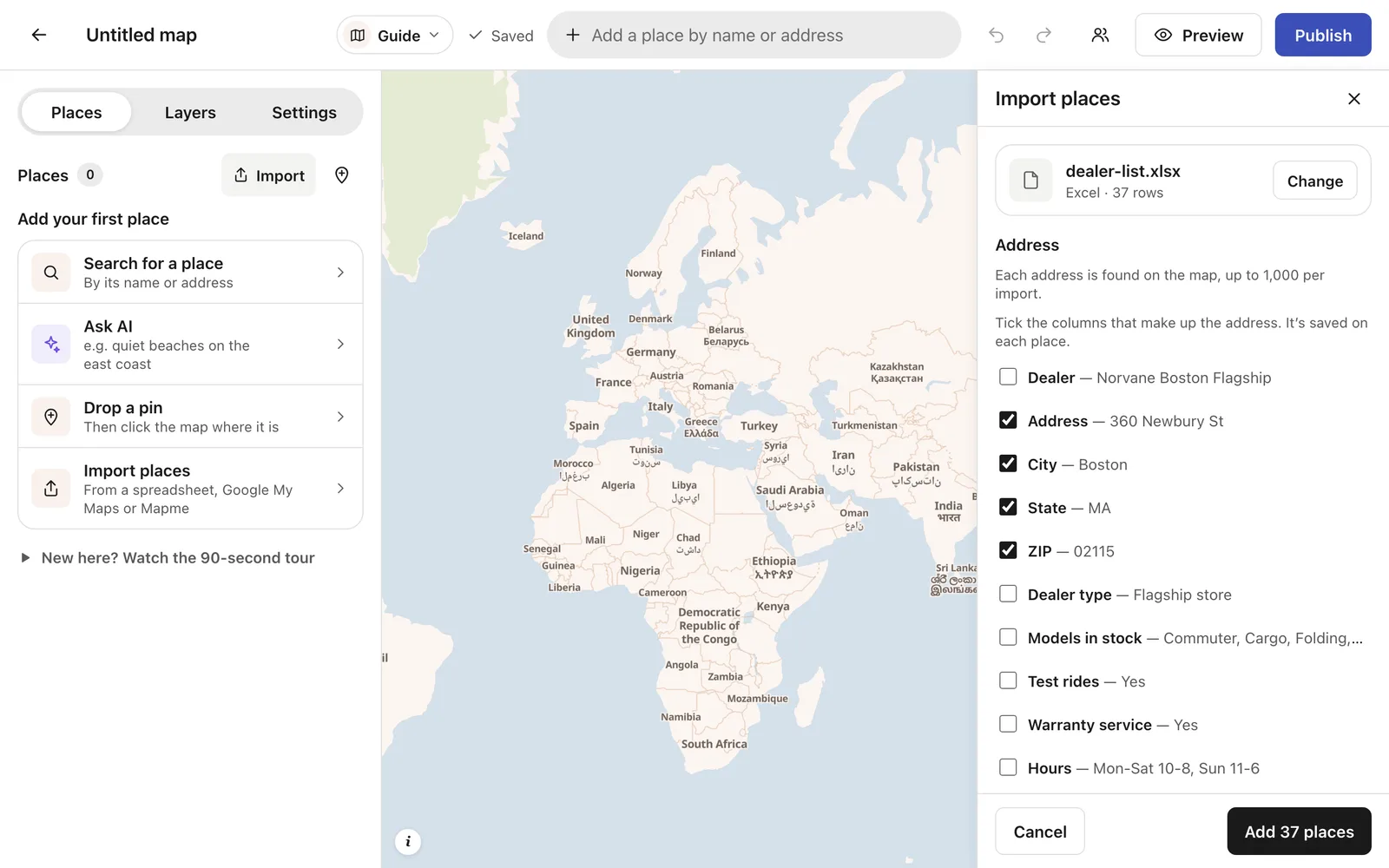
If a column is ticked that isn't part of the address, untick it. If your address is all in one column, just that one is ticked. The name and description are matched too: here, Dealer became each place's name and Notes its description.
Step 3: Pick the column that groups your places
This is the step most people skip, and it's what makes the map readable. Under Category, pick the column that sorts your places into groups. Ours is Dealer type: flagship stores, authorized dealers and service centers.
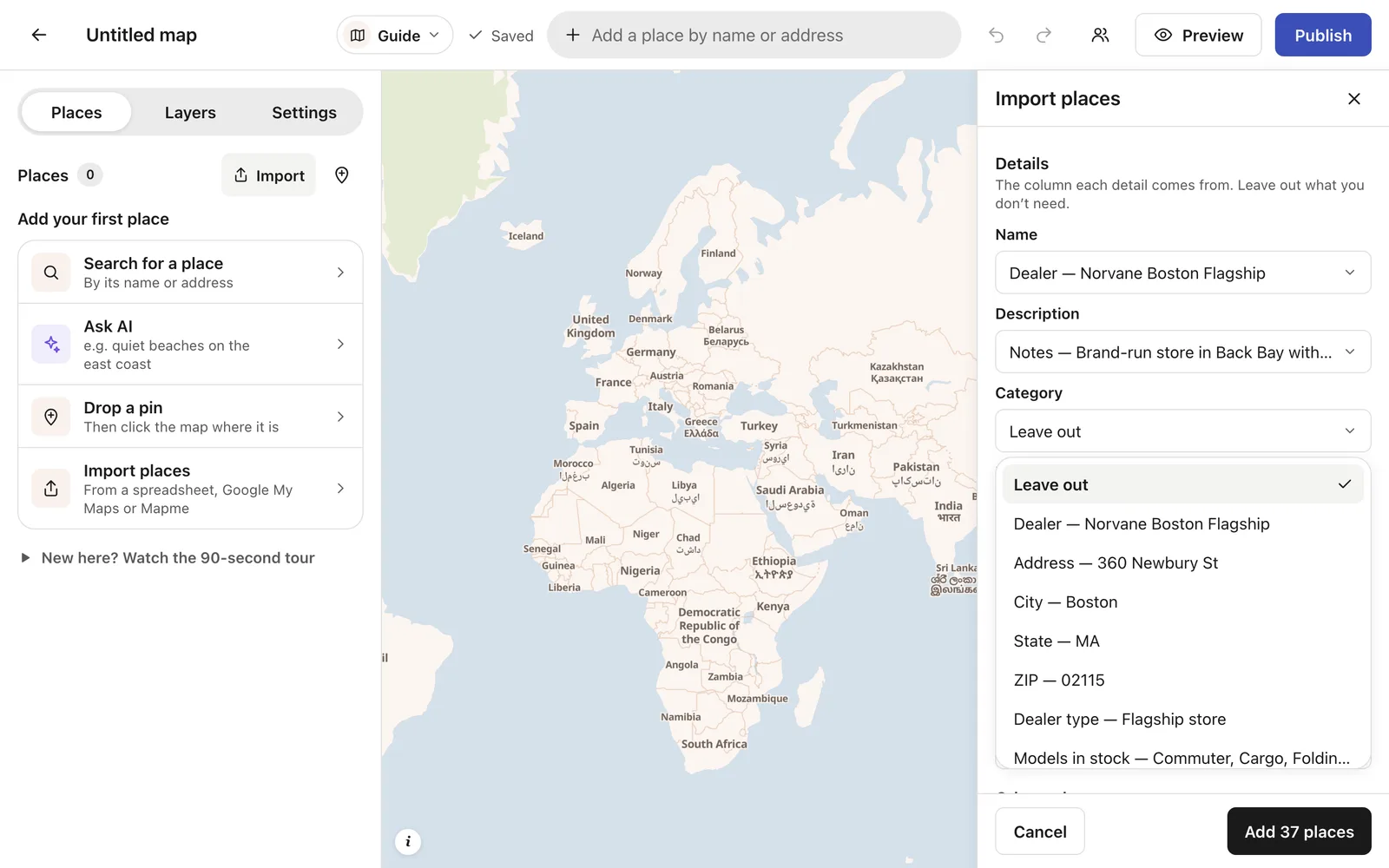
Each value becomes a category with its own color, and visitors can show just one group with a tap.
Step 4: Decide what each other column is
Every remaining column becomes a field: a detail shown on each place, which visitors can also filter by. Check that each one has the right kind:
| Column | Kind | Why |
|---|---|---|
| Models in stock | Multiple choice | A dealer can stock several models ("Commuter, Cargo") |
| Test rides | Yes or no | Visitors can filter to dealers that offer test rides |
| Hours | Text | "Mon–Sat 10–8, Sun 11–6" is just text, not a list of choices |
| Phone | Phone | Shows as a tap-to-call number on phones |
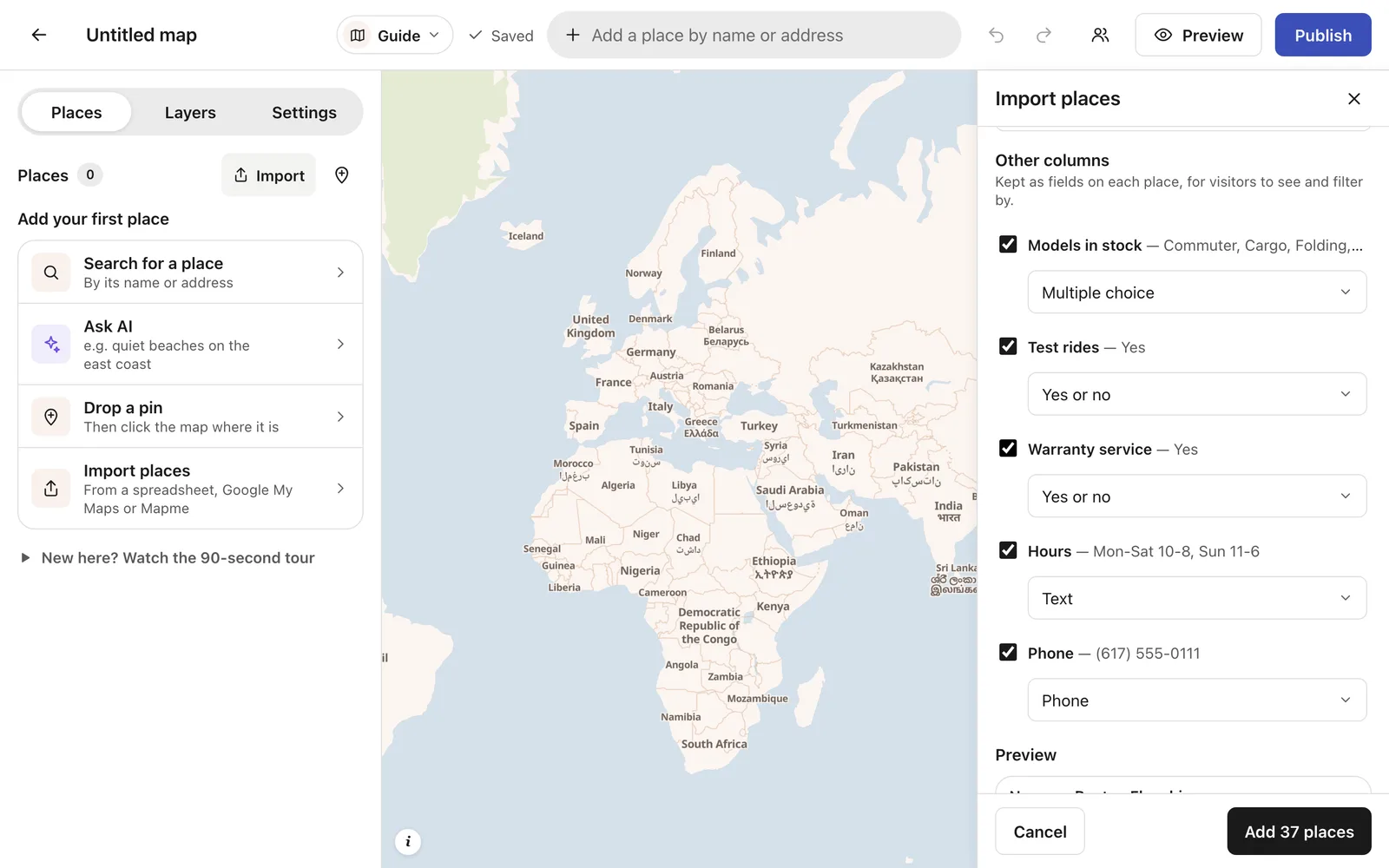
Untick any column you don't want on the map, such as internal notes or account numbers.
Step 5: Add the places
Click Add 37 places (your number will differ). Each address is found on the map, and a few seconds later every row is a pin.
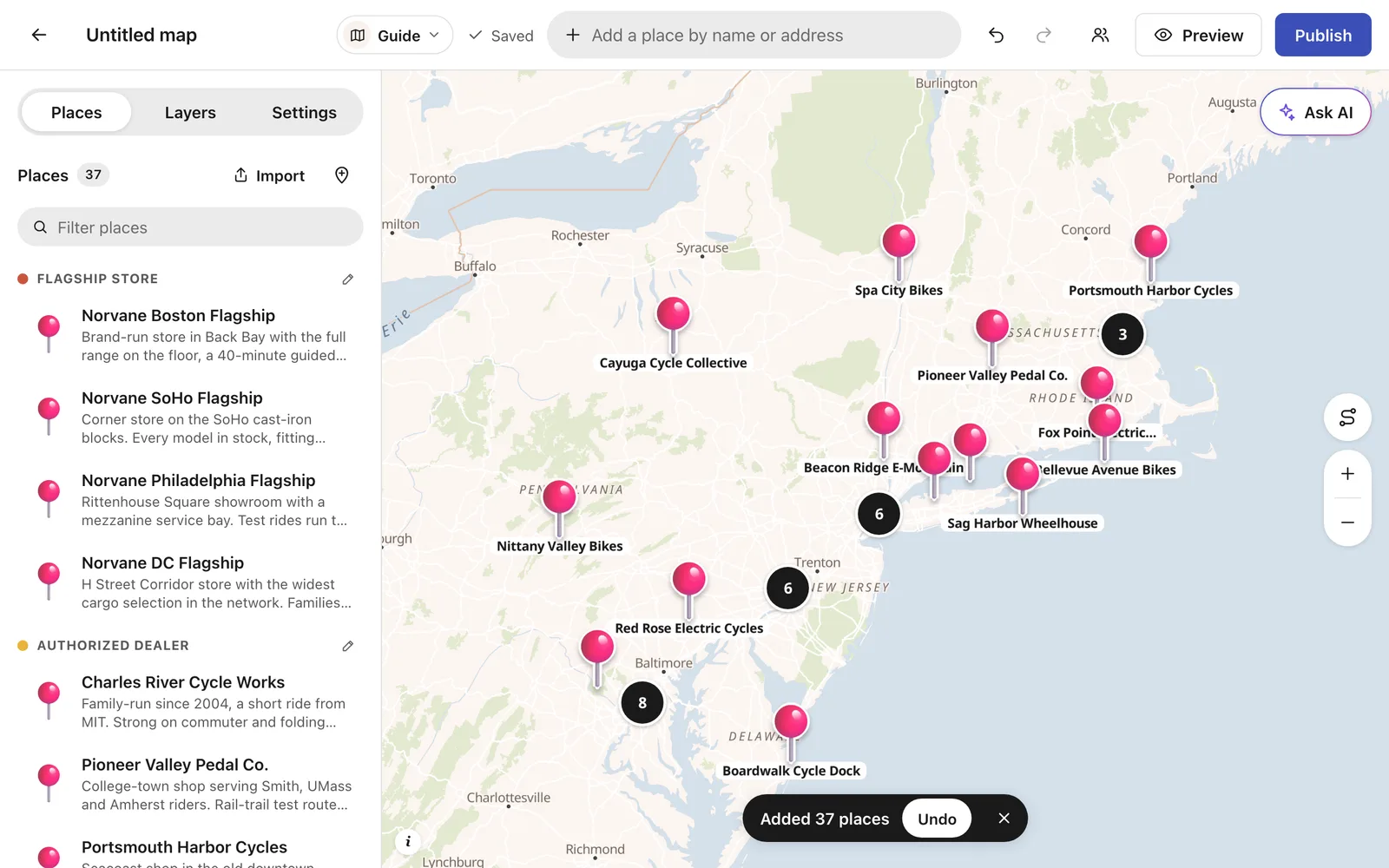
A few things worth knowing:
- Addresses that can't be found are listed after the import, and you can download them as a CSV, fix them, and import just those again.
- Re-importing is safe. A place with the same name at the same spot is skipped, so you won't get duplicates.
- Limits: up to 1,000 addresses are looked up per import and 2,000 per day, and a map holds up to 5,000 places. Rows that already have coordinates don't count toward the lookups.
- Changed your mind? Undo removes the whole import in one click.
Step 6: Make it a locator, and make it look like one
A list of dealers is most useful as a locator: customers search for their town and see the nearest dealer first. Click the layout menu at the top (it says Guide) and switch to Directory.
Then open Layers and give each category a color and an icon. We used a star for flagship stores, a bike for dealers and a wrench for service centers.
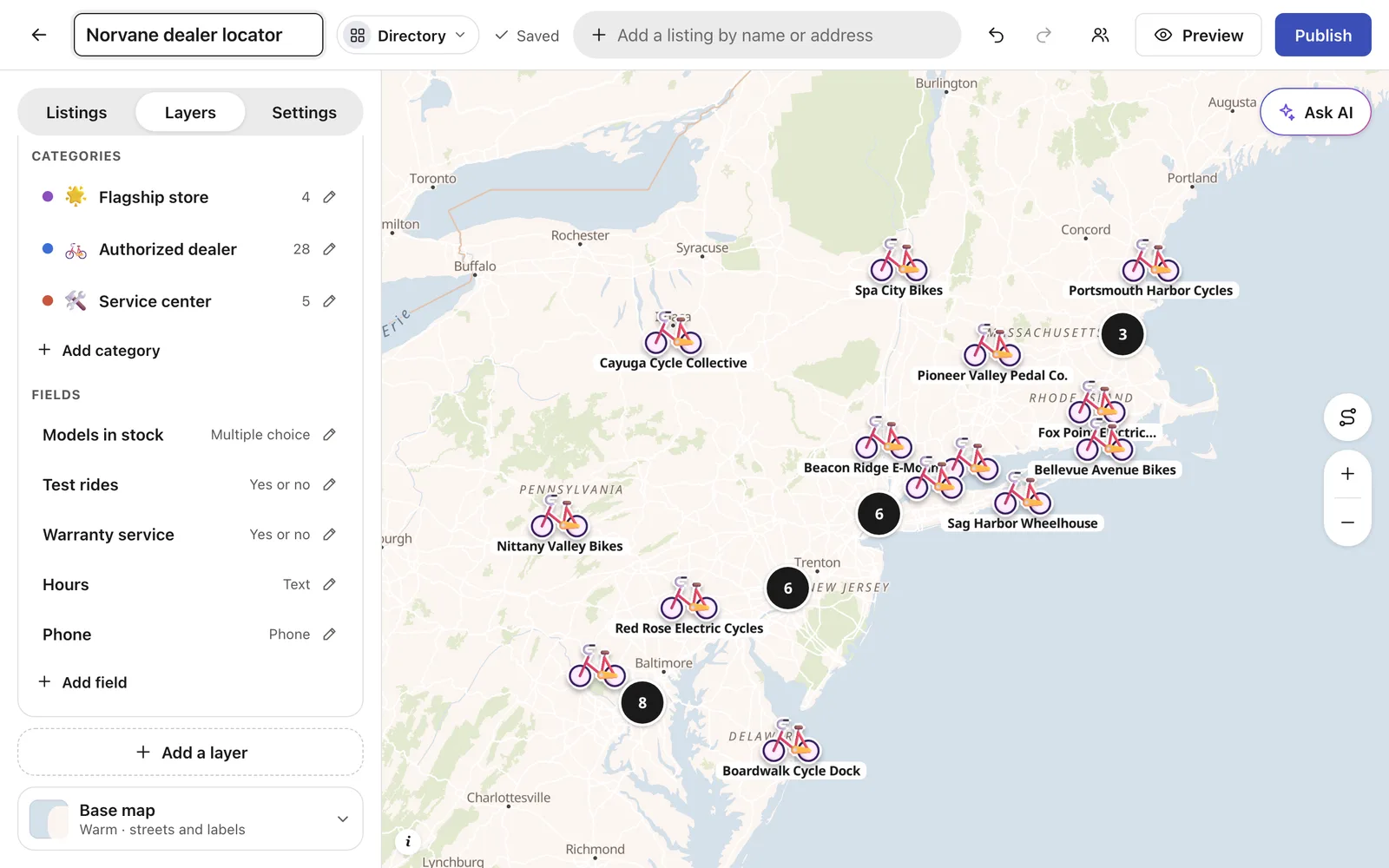
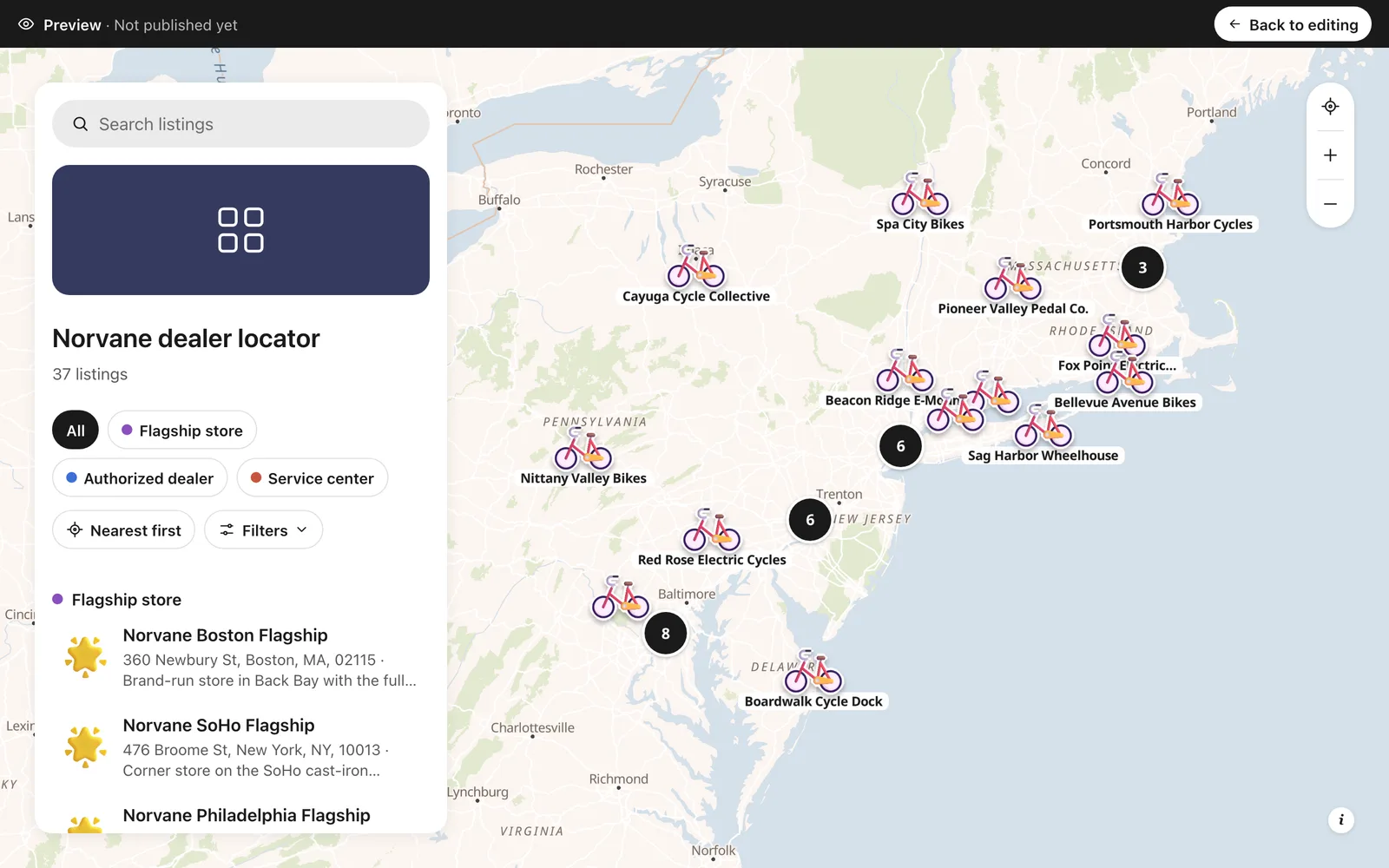
Click Preview to see it as your customers will: a search box, Nearest first, the category chips, and Filters for the fields you kept.
Step 7: Share it or put it on your website
Click Publish and copy the link. Anyone can open it, with no account.
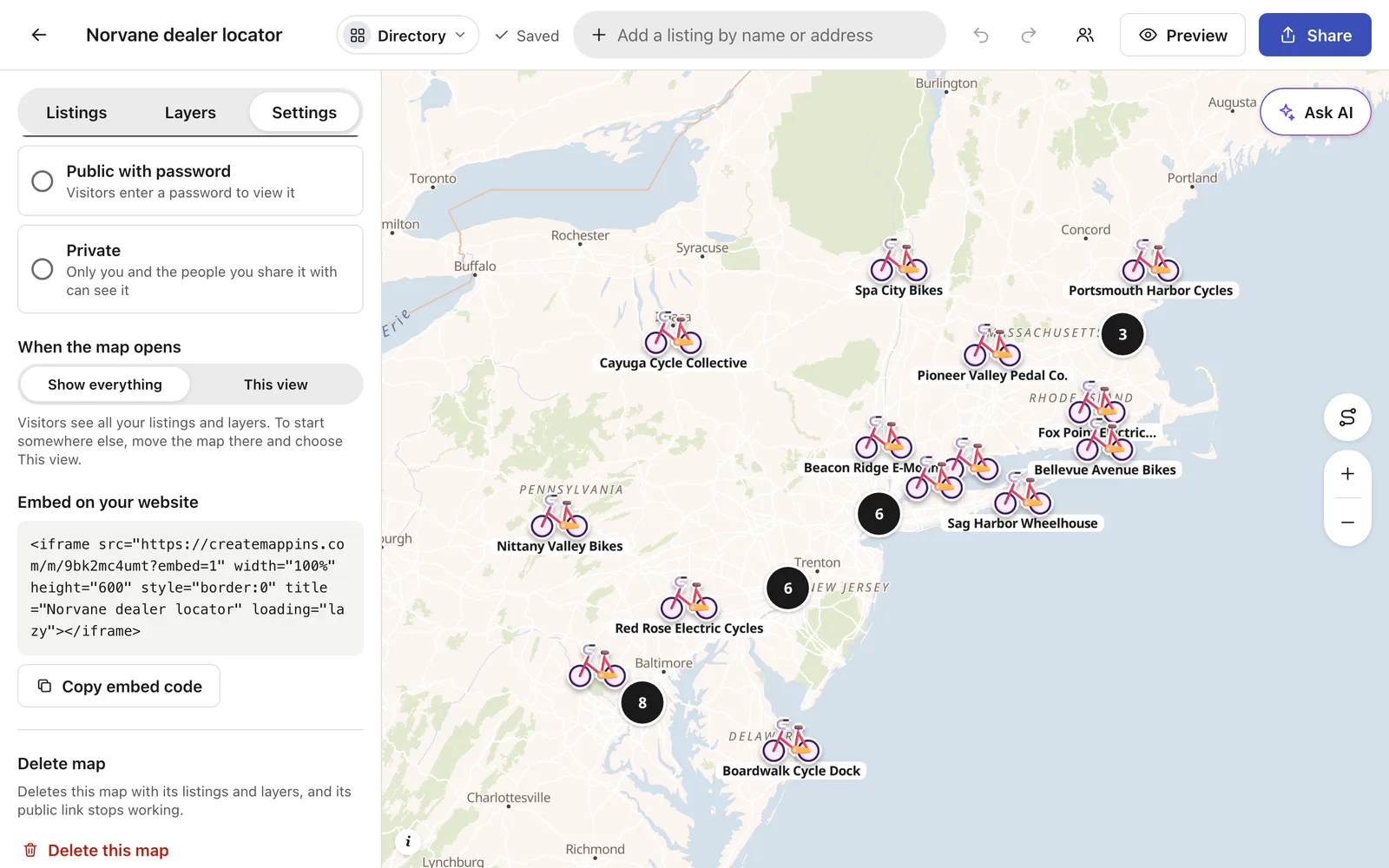
To put the map on your own website, open Settings, go to Embed on your website, and click Copy embed code. Paste it wherever your site builder takes HTML: a Custom HTML block in WordPress, an Embed element in Webflow, a Code block in Squarespace. It looks like this:
<iframe src="https://createmappins.com/m/your-map?embed=1" width="100%" height="600" style="border:0" loading="lazy"></iframe>
Tips for a clean import
- Complete addresses find more places. "360 Newbury St, Boston, MA 02115" is found every time. "Newbury St" alone may not be.
- Keep one place per row and remove merged cells, blank rows above the header, and totals at the bottom.
- Spell categories the same way everywhere. "Dealer" and "dealers" become two categories.
- Separate several values with commas in one cell (Commuter, Cargo) and set the field to multiple choice.
- Got coordinates? Name the columns Latitude and Longitude and the lookup is skipped entirely.
Other ways to map Excel data, and when they fit better
Create Mappins isn't the only option, and it isn't always the right one:
- Excel's own map chart colors in countries, states or postal codes by a number. It's built in and great for "sales by state", but it doesn't put a pin on each address.
- 3D Maps in Excel (Windows) plots points on a globe, but the result stays inside Excel. You can't send someone a link to it.
- Google My Maps is free and imports CSV and Excel files too. It suits a personal map; it has no nearest-first search or filters for visitors, and each layer takes a limited number of rows.
- GIS tools like QGIS or ArcGIS are the right call for heavy analysis (drive-time zones, demographics), with a much steeper learning curve.
If you need a map other people use, like customers finding a dealer, members finding each other, or a sales team seeing its territory, that's where a tool like Create Mappins earns its place. See more of what it does with spreadsheets on the Excel to Map page, or browse 40 live map examples.