Most sales territories live in a spreadsheet and somebody's memory. Reps argue over who owns an account, managers can't see where the pipeline sits, and new hires take weeks to learn the patch.
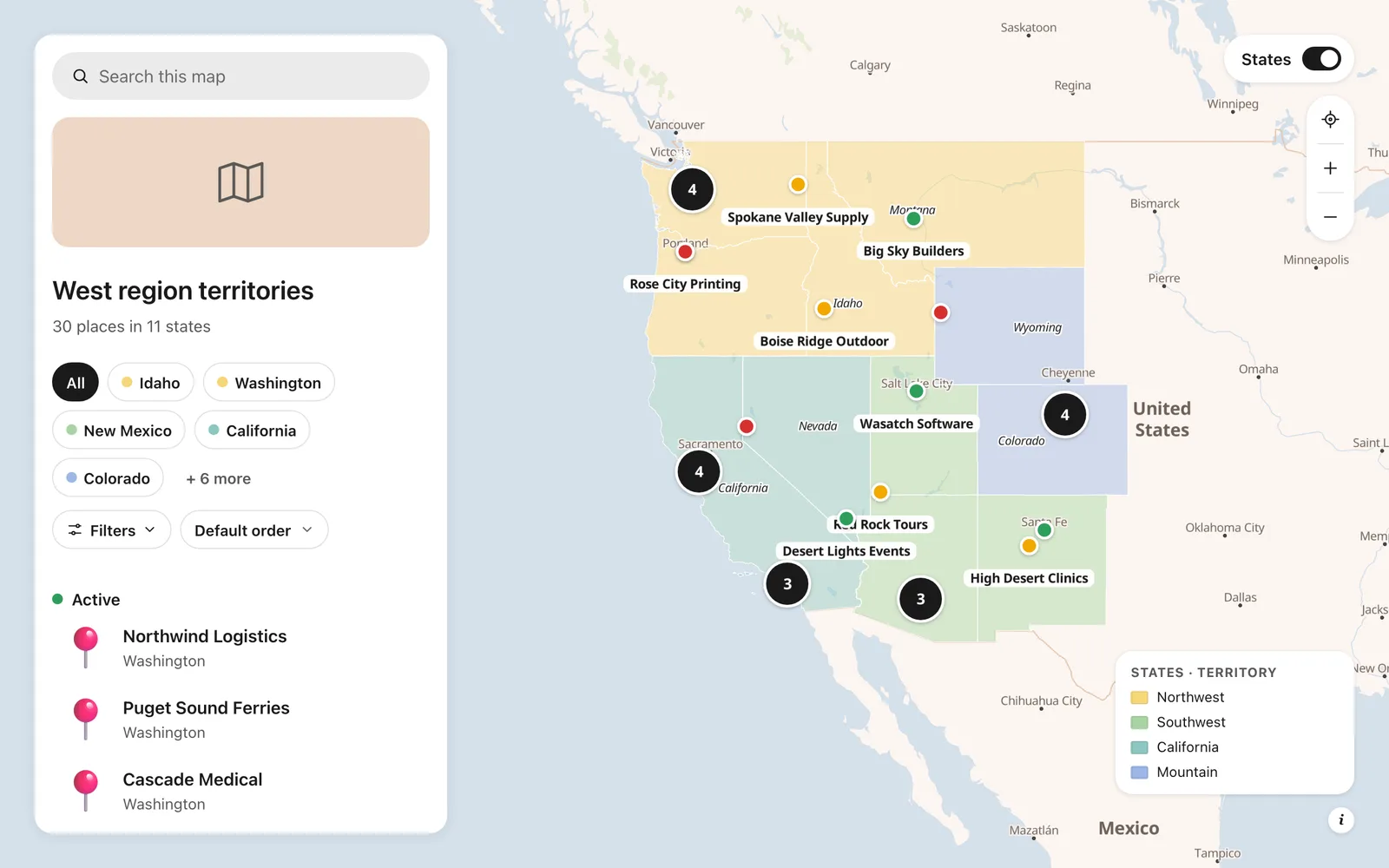
A territory map fixes that: every account on one map, each territory in its own color, and a link the whole team can open. This guide builds one from a spreadsheet, step by step. Our example is 30 accounts across the western US, four reps, and four territories.
What you need
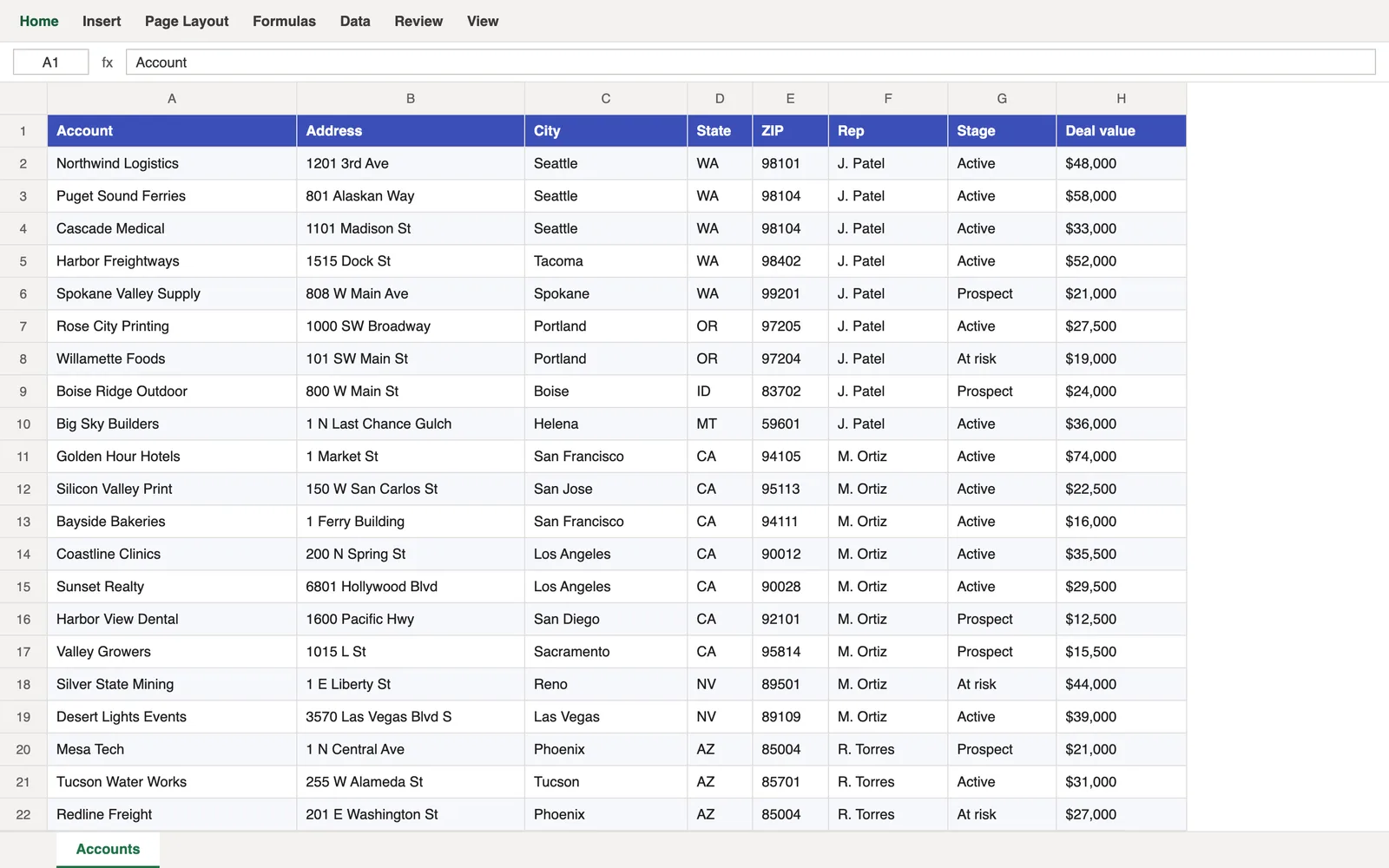
- A spreadsheet of accounts: a name and an address for each, plus the columns your team cares about. Ours has the rep, the deal stage (Active, Prospect, At risk) and the deal value. Excel (
.xlsx) and CSV both work. - Your territories: which states belong to which rep. A list in your head is enough.
- The Pro plan (it has a 7-day free trial): spreadsheet import and layers come with it.
Want to follow along? Download the sample spreadsheet we use in this guide.
Step 1: Add the US states as a layer
Sign in to Create Mappins, click New map, and choose Blank map. Open Layers, click Add a layer, and search the data library for United States states.
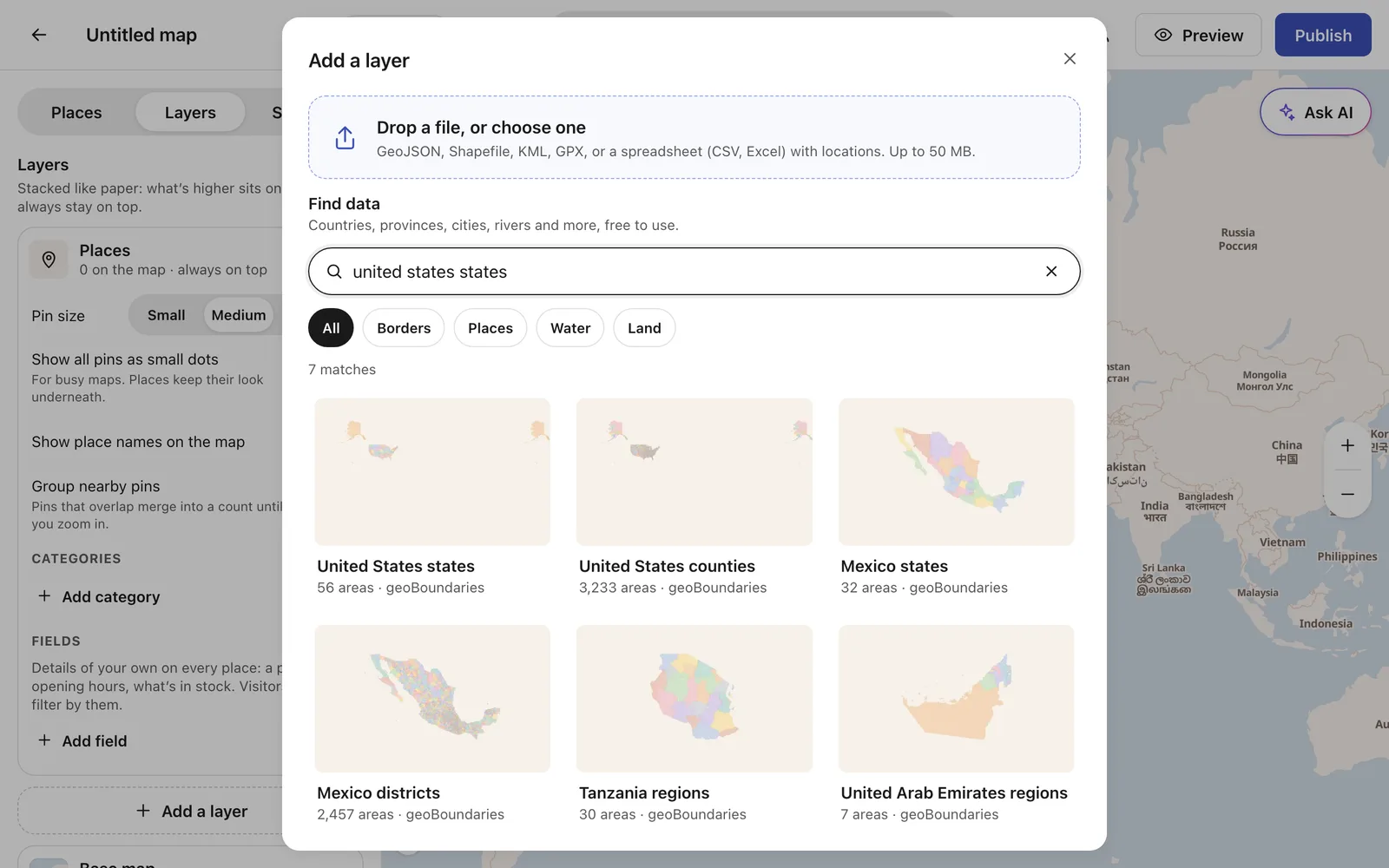
Choose it, then pick Just show the borders. The territories get their colors in a moment; for now the states are a quiet backdrop. Click Add to map.
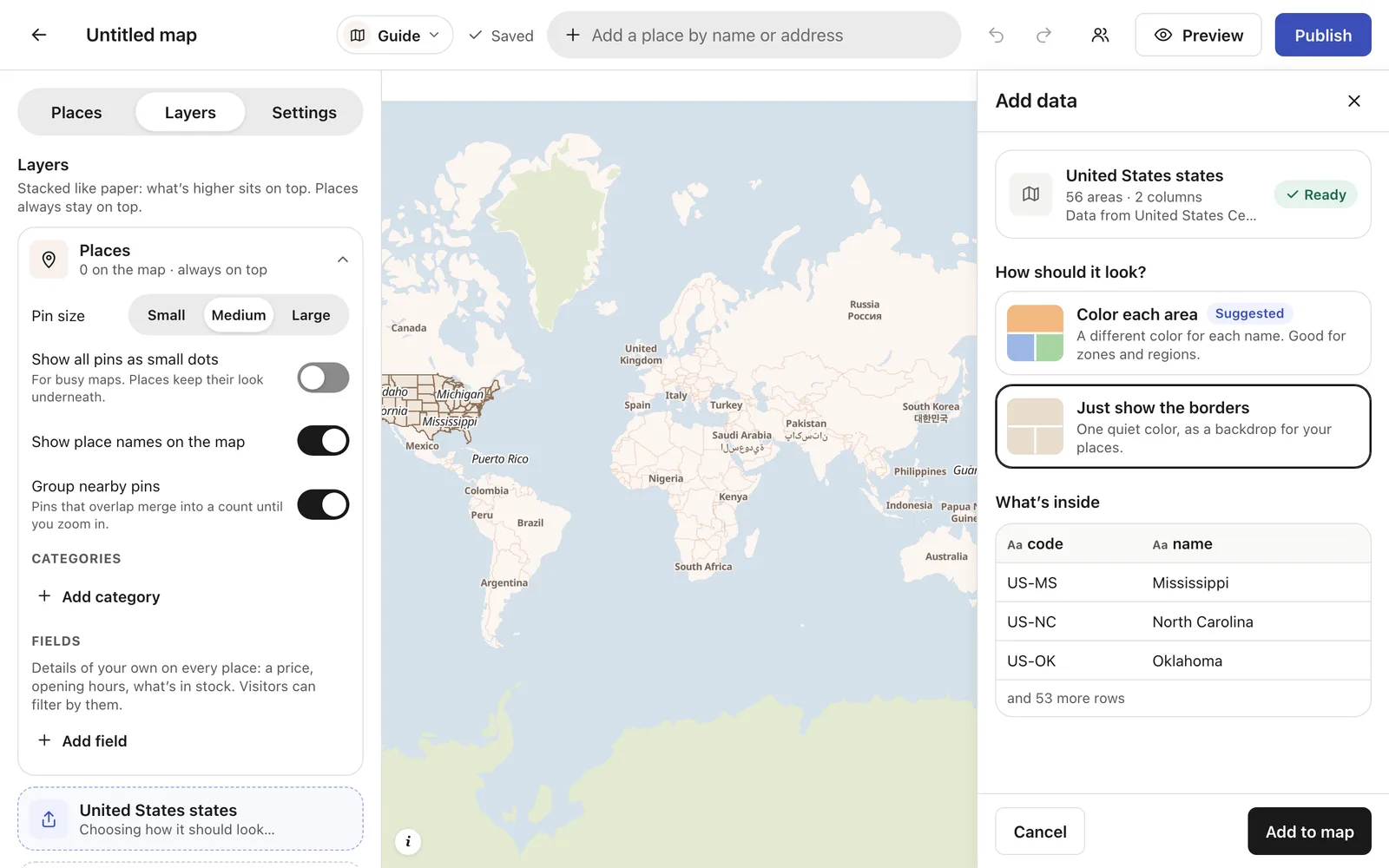
Need finer territories than whole states? Pick United States counties instead (3,233 of them). Everything below works the same way.
Step 2: Import your accounts
Open Places, click Import, choose Spreadsheet, and pick your file. The address columns are matched for you. Then two choices make this a sales map:
- Under Category, pick your stage column, so every deal is colored by where it stands.
- Under the other columns, set Deal value to Price, so it shows as money and visitors can filter by it.
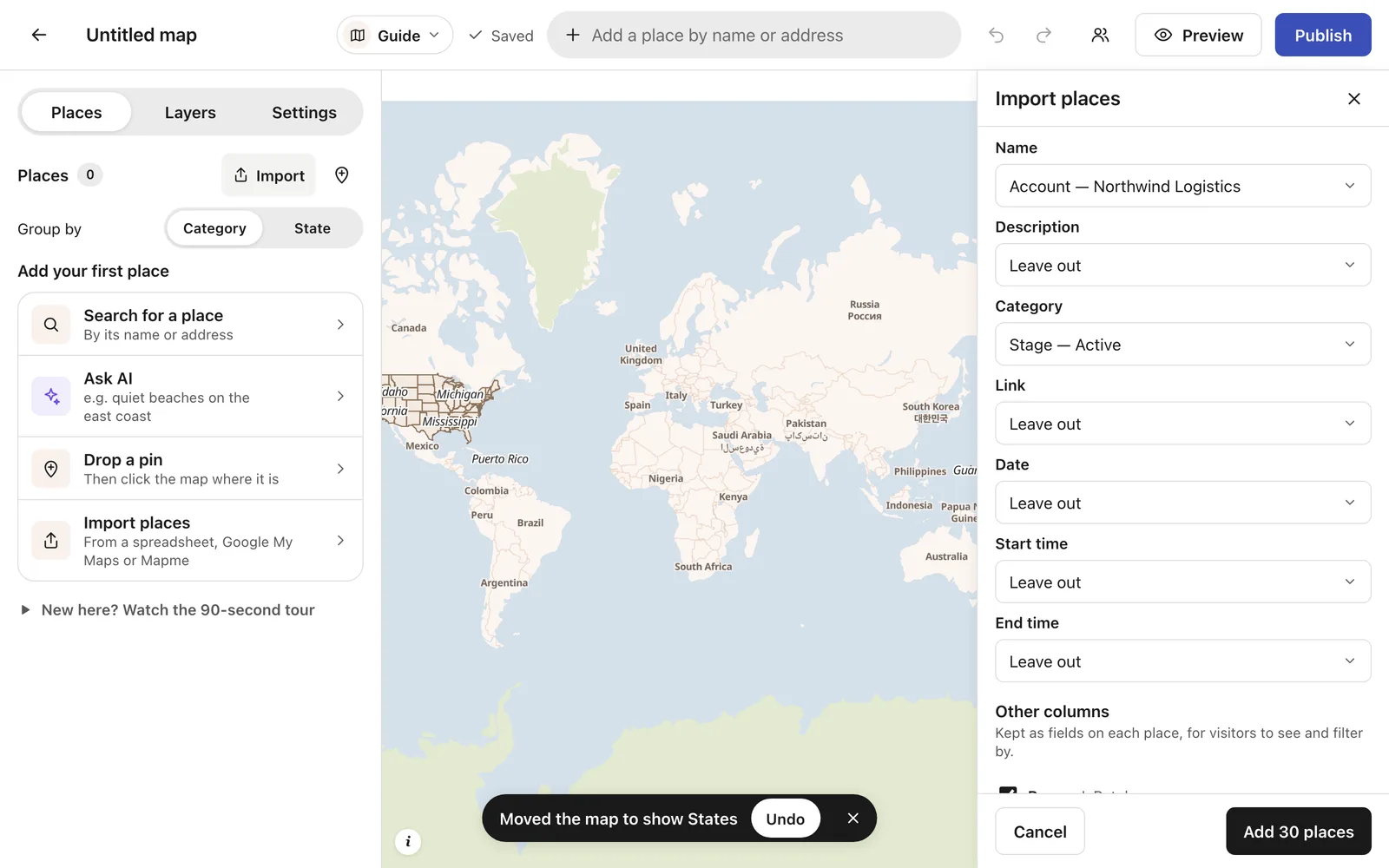
Click Add 30 places (your number will differ). Every address is found, and the map moves to your accounts. New to importing? Our Excel to map guide covers every option.
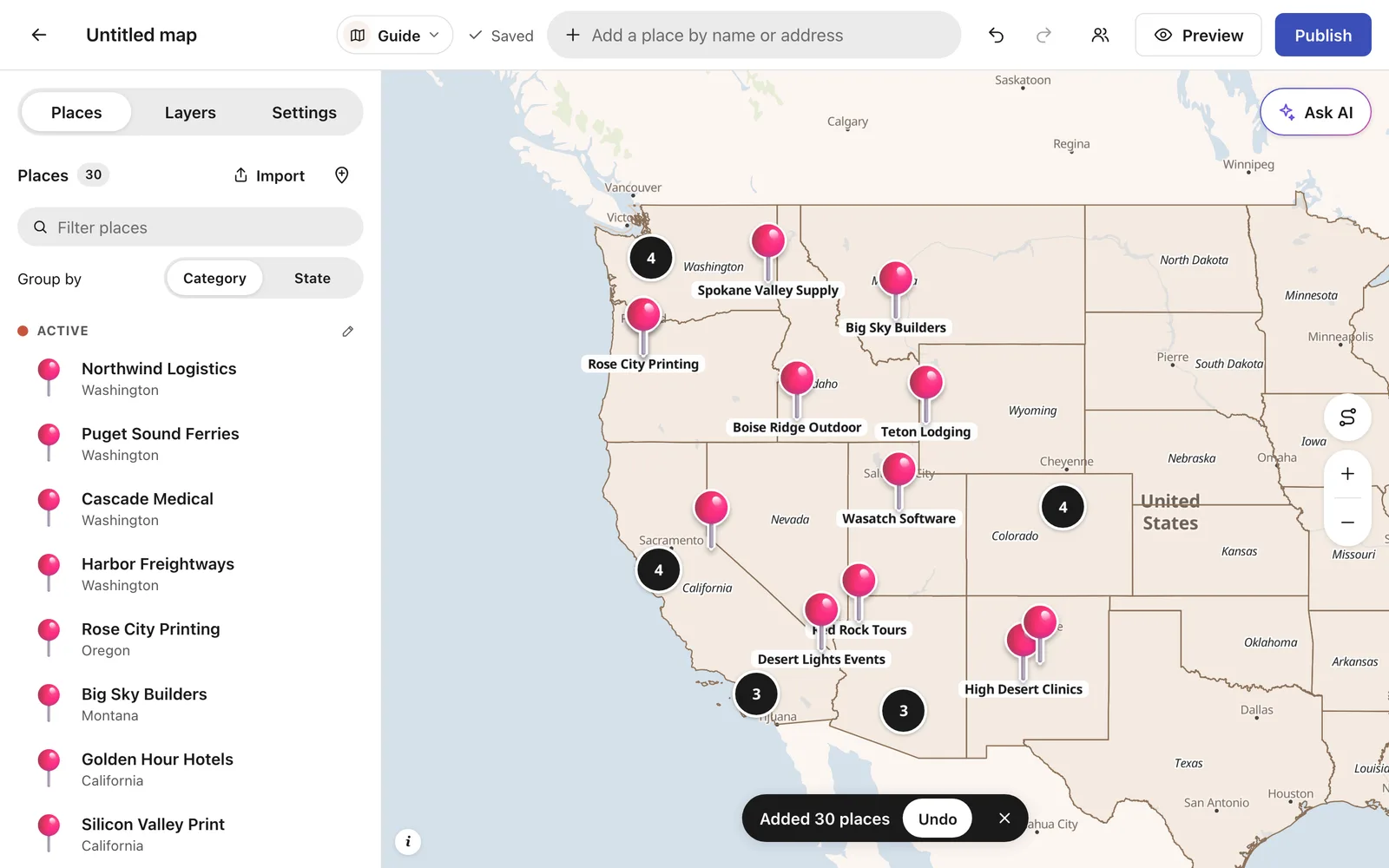
Step 3: Create the territories
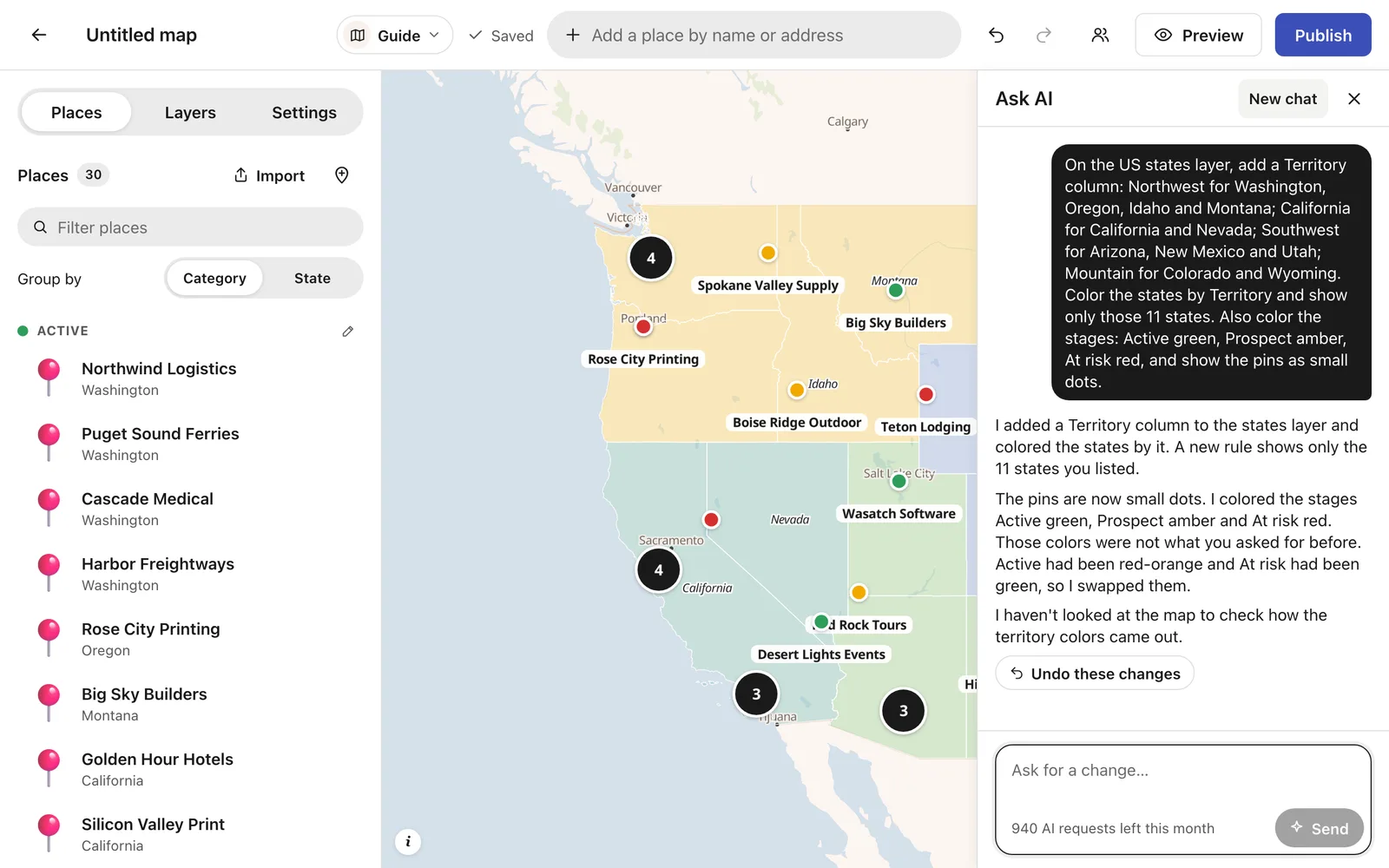
The fastest way is to ask the AI. Click Ask AI and say which states go in which territory. This is the request we used:
On the US states layer, add a Territory column: Northwest for Washington, Oregon, Idaho and Montana; California for California and Nevada; Southwest for Arizona, New Mexico and Utah; Mountain for Colorado and Wyoming. Color the states by Territory and show only those 11 states. Also color the stages: Active green, Prospect amber, At risk red, and show the pins as small dots.
A few seconds later the West is split into four territories, each in its own color, and the deals are green, amber and red dots. Undo these changes takes it all back if it isn't what you wanted.
Prefer to do it by hand? Open the states layer and use Add a rule: Color the areas where name is one of the states in a territory, pick its color, and repeat for each territory.
Step 4: Check the territories, and change anything
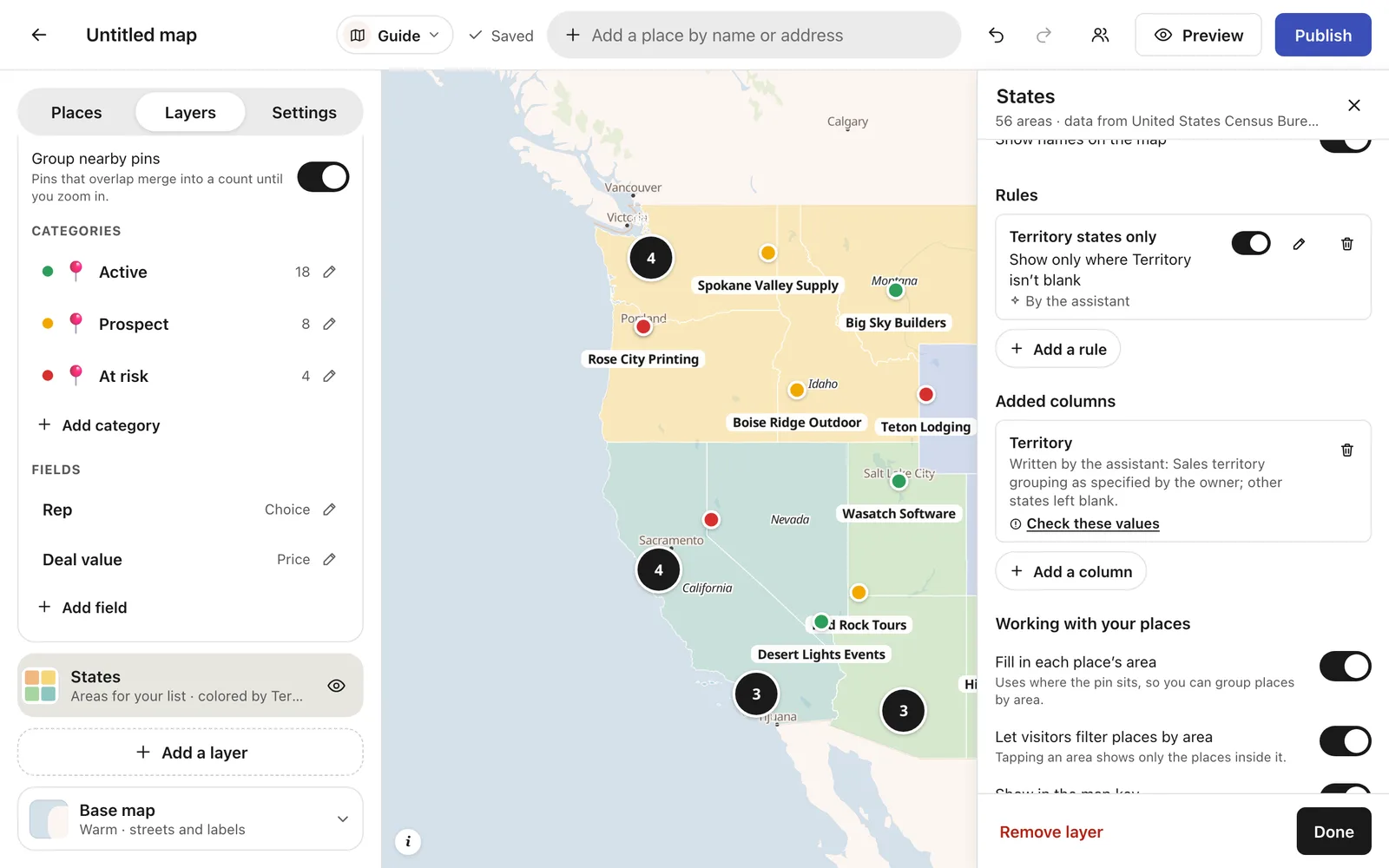
Everything the AI did is in the layer's settings, where you can change it yourself. Open Layers and click the States layer:
- Color by is set to Territory, with one color per territory. To change one, use the pencil beside it, or click that territory on the map.
- The Territory column it added is listed under Added columns, with Check these values so you can confirm each state.
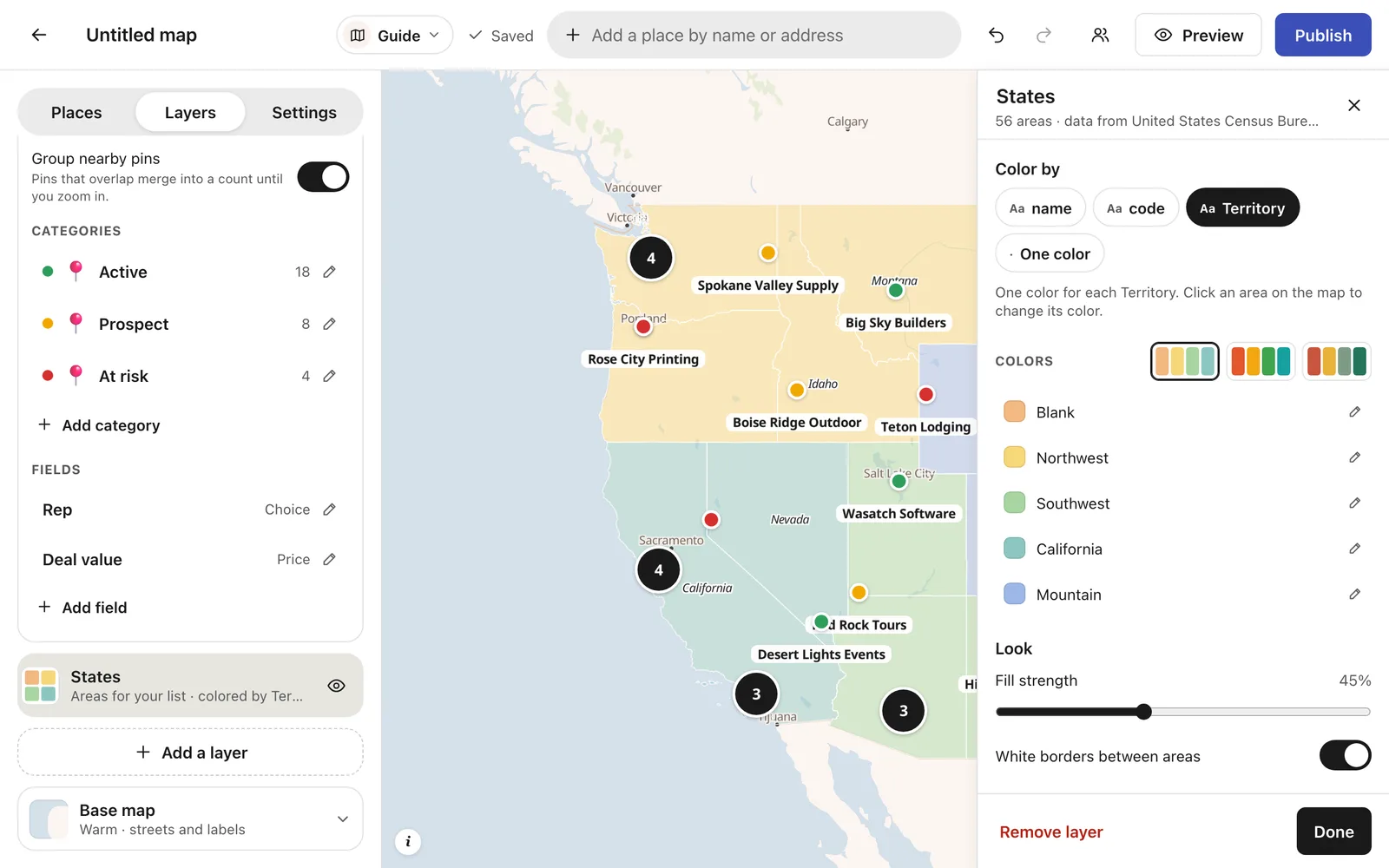
- Under Rules, Show only where Territory isn't blank hides every state outside your territories. Switch it off to see the whole country again.
Step 5: Name it, and set the view it opens on
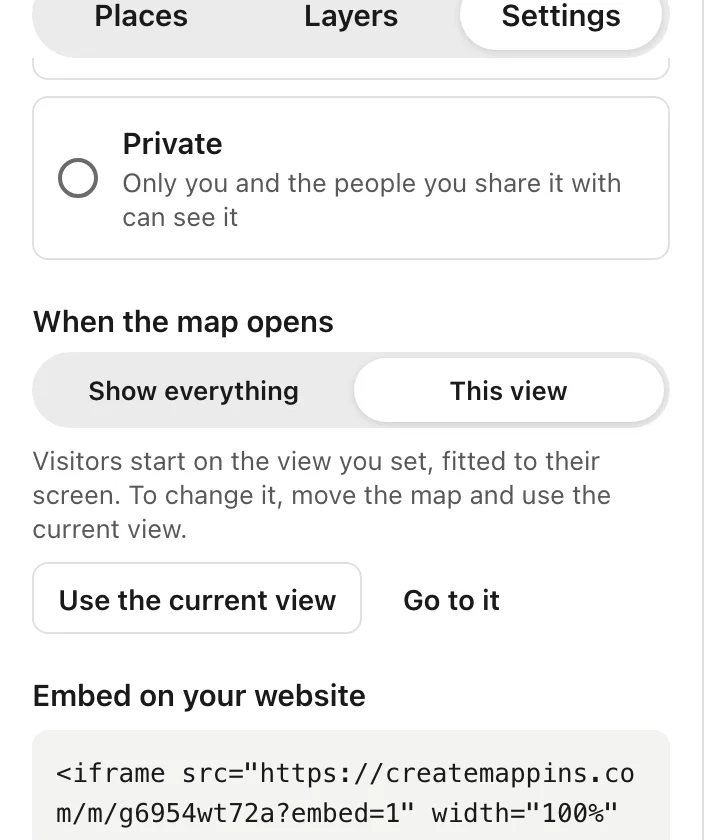
Give the map a name your team will recognize. Then open Settings, find When the map opens, and choose This view: zoom the map to your region and click Use the current view. Without it, a US map can open zoomed out to the whole world, because Alaska's islands stretch across the date line.
Step 6: Share it with your team
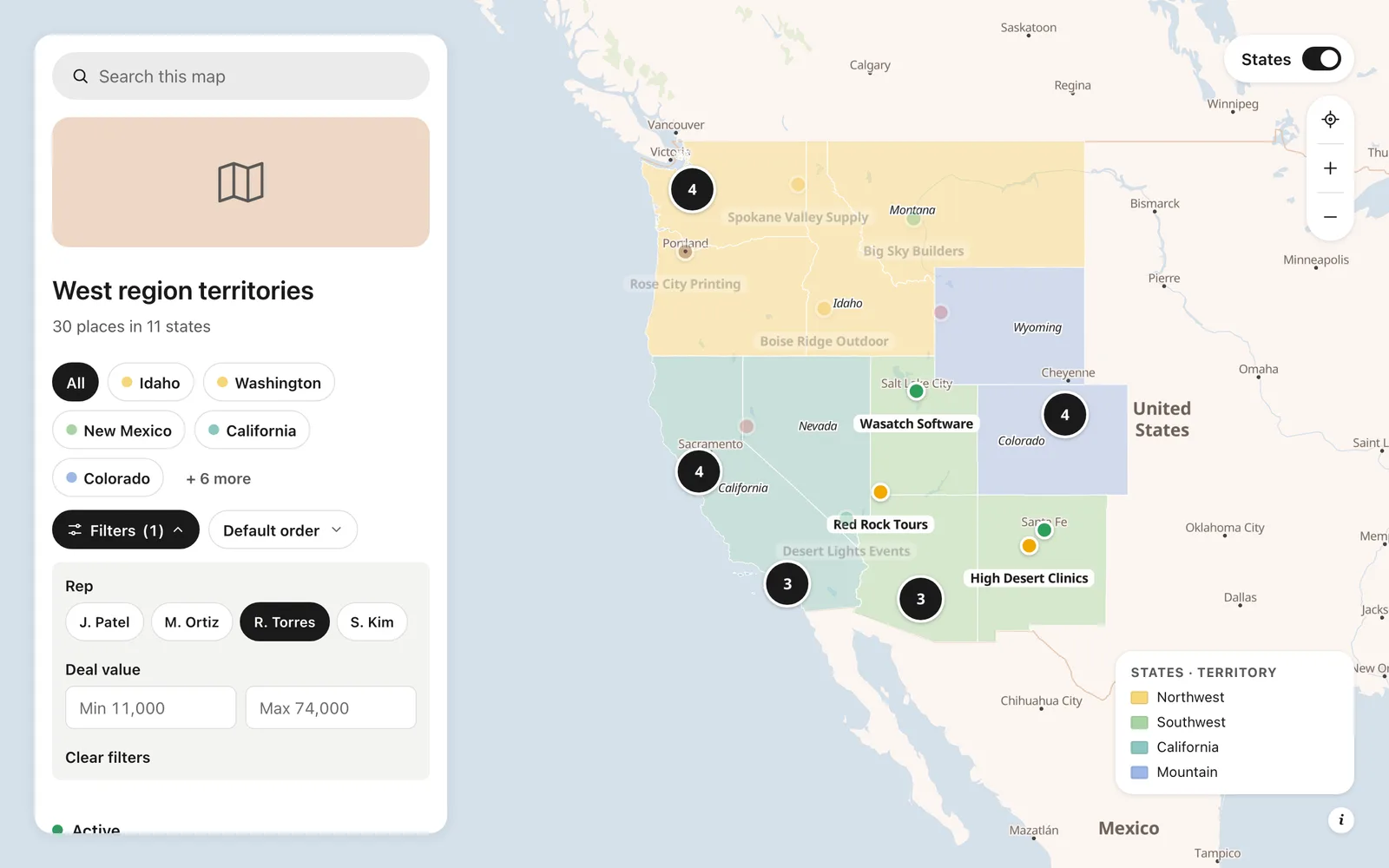
Click Publish and copy the link. Your team sees the territories with a key, every account colored by stage, and Filters for each field. Pick a rep to see just their accounts, or set a deal value range to find the big ones.
Want it private? In Settings, choose Public with password (Pro), or Private and share it with your team by email so they can edit it with you (Business).
Tips for territories that work
- Keep rep names identical everywhere. "R. Torres" and "R Torres" become two reps in the filter.
- Territories follow the layer you pick. States are quick to set up; counties let you split a large state between reps.
- Presenting it in a slide or printing it? Under Layers → Base map, choose Plain background, so only your territories and accounts show. For everyday use, keep the streets: reps need to see the cities.
- Have your own territory shapes? If your territories are drawn in another tool, add them as a layer from a GeoJSON, Shapefile or KML file instead of the states.
Other ways to map sales territories, and when they fit better
- Dedicated territory software (Salesforce Maps, eSpatial, Maptive, Mapline) can balance territories automatically by workload or revenue and plan reps' routes. If you're redrawing territories for a large team by the numbers, that's what it's built for. It costs considerably more.
- Excel's map chart can color states by rep for a one-off slide. It doesn't show accounts, and nobody can filter it.
- Google My Maps lets you draw territory shapes by hand and add pins, which is fine for a small, personal map. It has no filters for your team.
If you want your accounts and territories on one live map your team actually opens, set up in minutes from the spreadsheet you already have, that's where Create Mappins fits. See more on the Sales teams page.