"Find a member" is one of the most visited pages on an association's website, and usually one of the least useful: an alphabetical list, or a PDF that was out of date the week it went up. People don't look for a member by name. They look for one near them who does what they need.
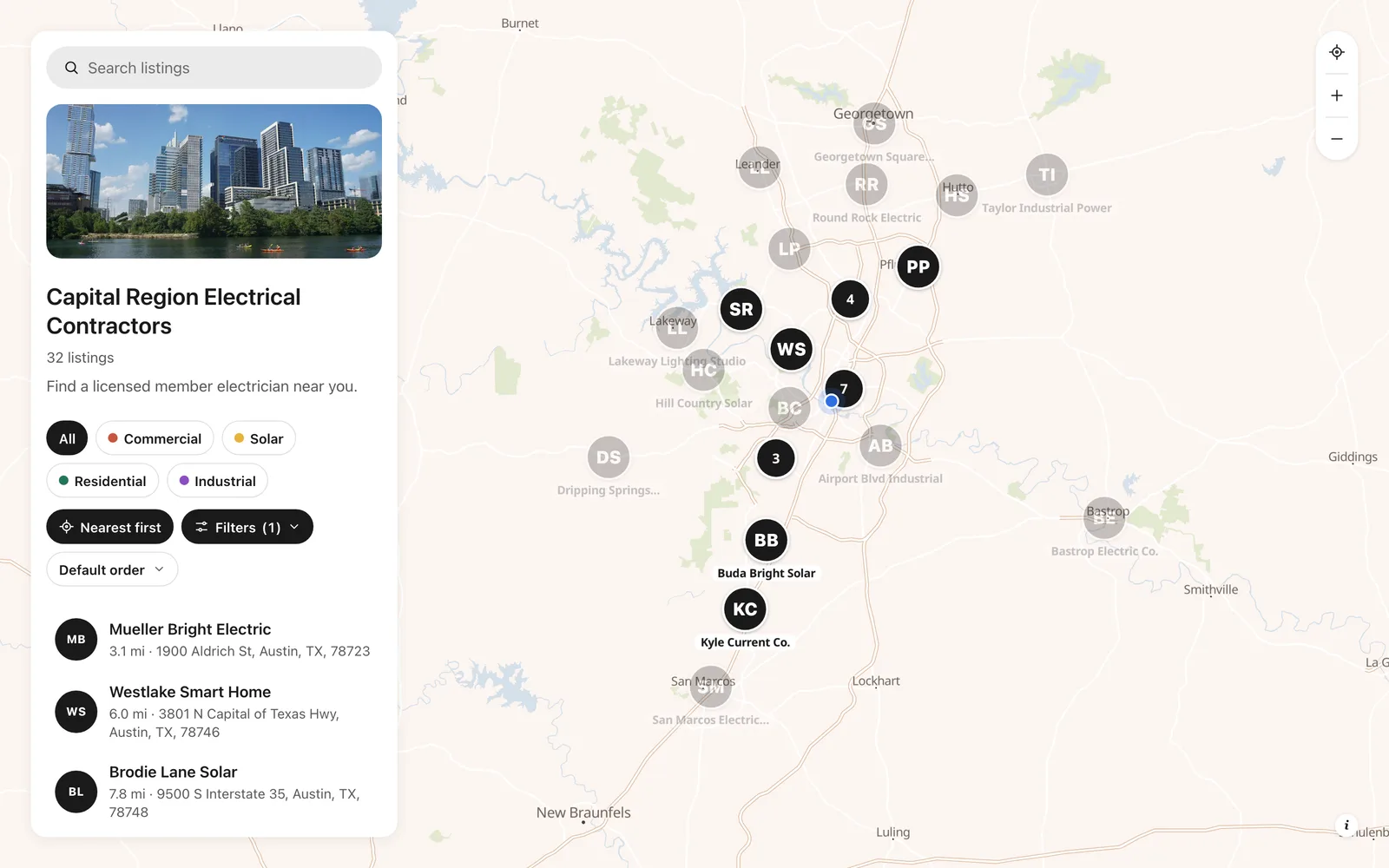
A member directory map does exactly that. Every member is on one map, and visitors can search by town, filter by service, sort by distance and call or visit the member they pick. This guide builds one from a spreadsheet, step by step. Our example is a trade association of 32 electrical contractors around Austin, Texas. Here it is, live: search for a town, or open Filters.
What you need
- Your member list as a spreadsheet: a name and an address for each member, plus whatever visitors should see or filter by. Ours has each member's specialty, the services they offer, 24-hour emergency service, a website, a phone number and the year they joined. Excel (
.xlsx) and CSV both work. - The Pro plan (it has a 7-day free trial): spreadsheet import and password protection come with it, and a directory can hold up to 5,000 members.
Want to follow along? Download the sample member list we use in this guide.
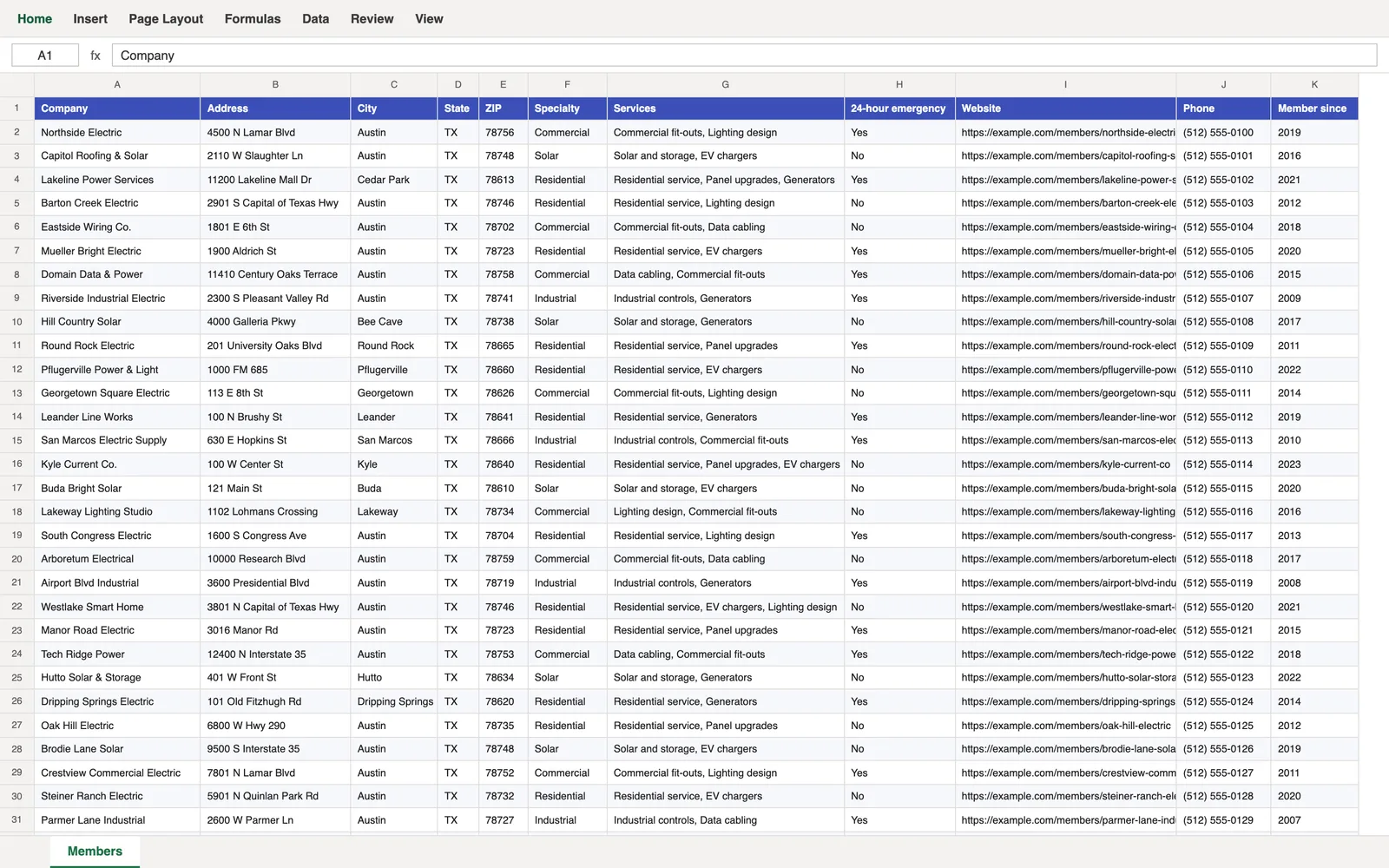
A tip before you start: if one column lists several things, like our Services, separate them with commas ("Solar and storage, EV chargers"). Each one becomes its own filter.
Step 1: Start from the Member directory template
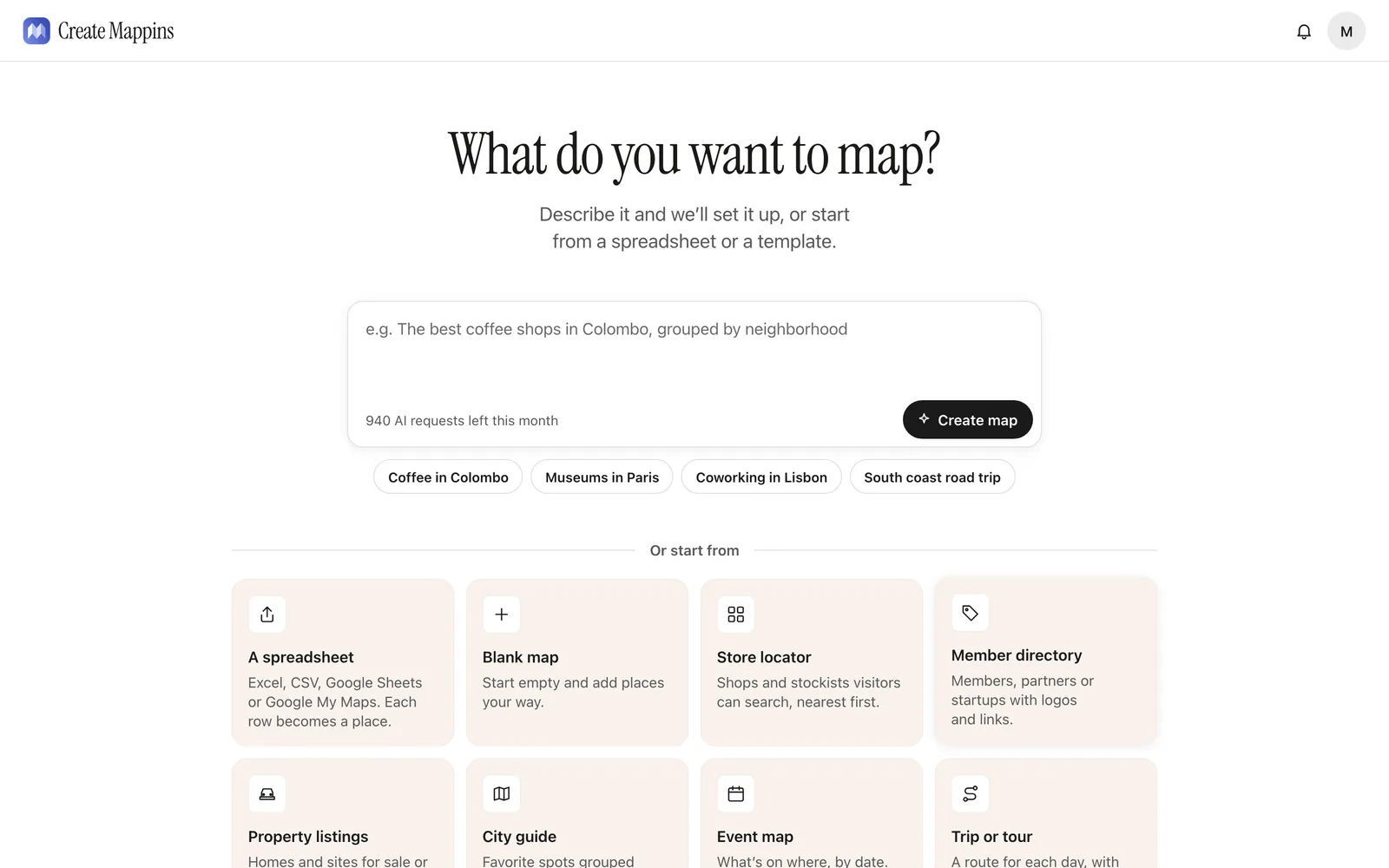
Sign in to Create Mappins, click New map, and choose Member directory. It sets the map up for a directory: a list of members beside the map, a search box, and each member shown with their initials (or their logo, if you add one).
Step 2: Import your member list
Click Import listings, choose Spreadsheet, and pick your file. The address columns are ticked for you, and the details are matched to what they hold: the company name becomes each listing's Name and the website its Link.
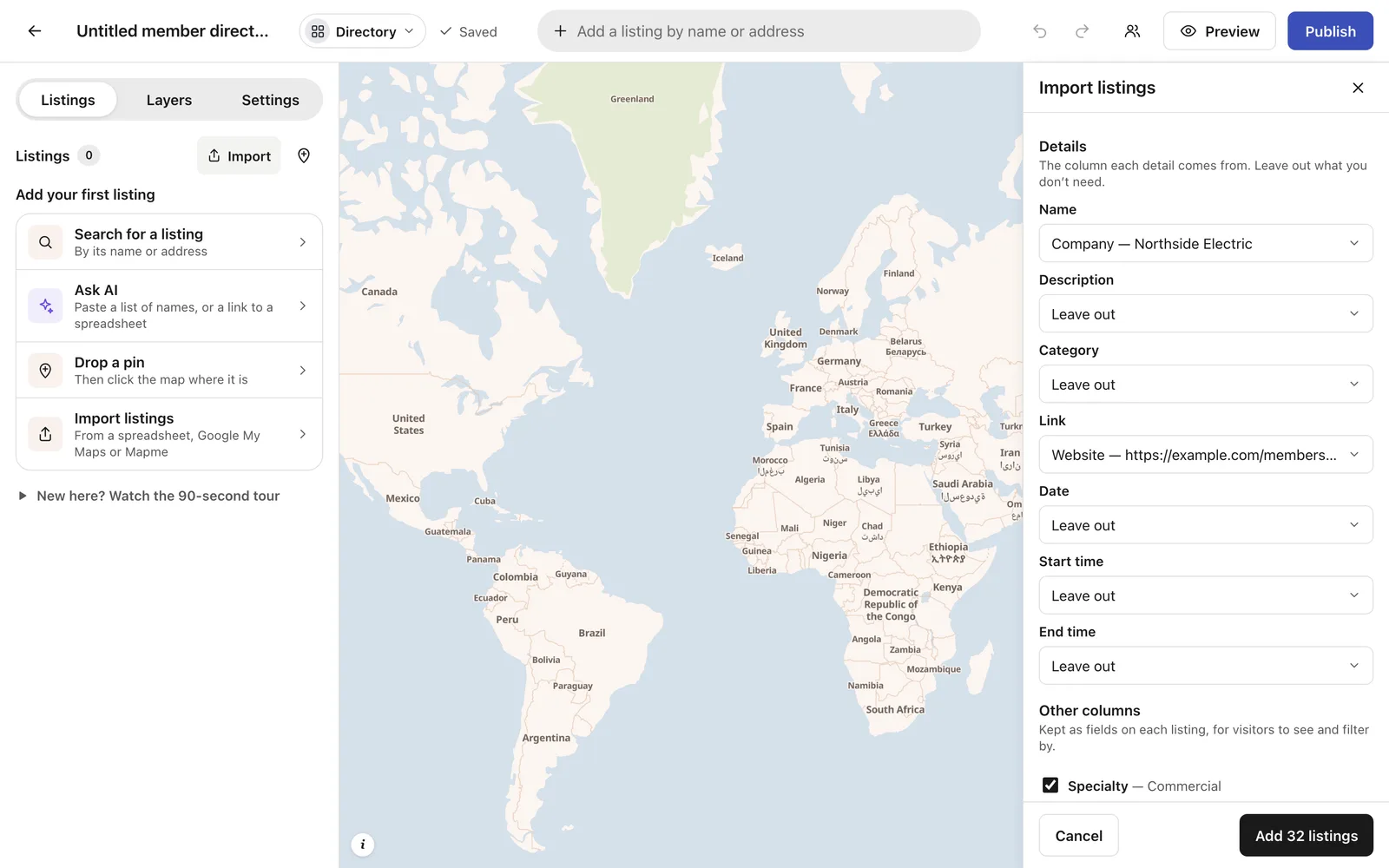
Two choices turn the list into a directory people can browse:
- Under Category, pick your Specialty column. Members are grouped by it, each group in its own color, and visitors get a button for each.
- Under Other columns, set Services to Multiple choice, so visitors can filter by each service, not by the whole list of them.
The other columns are kept as they're guessed: 24-hour emergency as Yes or no (a switch in the filters), Phone as a phone number visitors can tap to call, and Member since as a number.
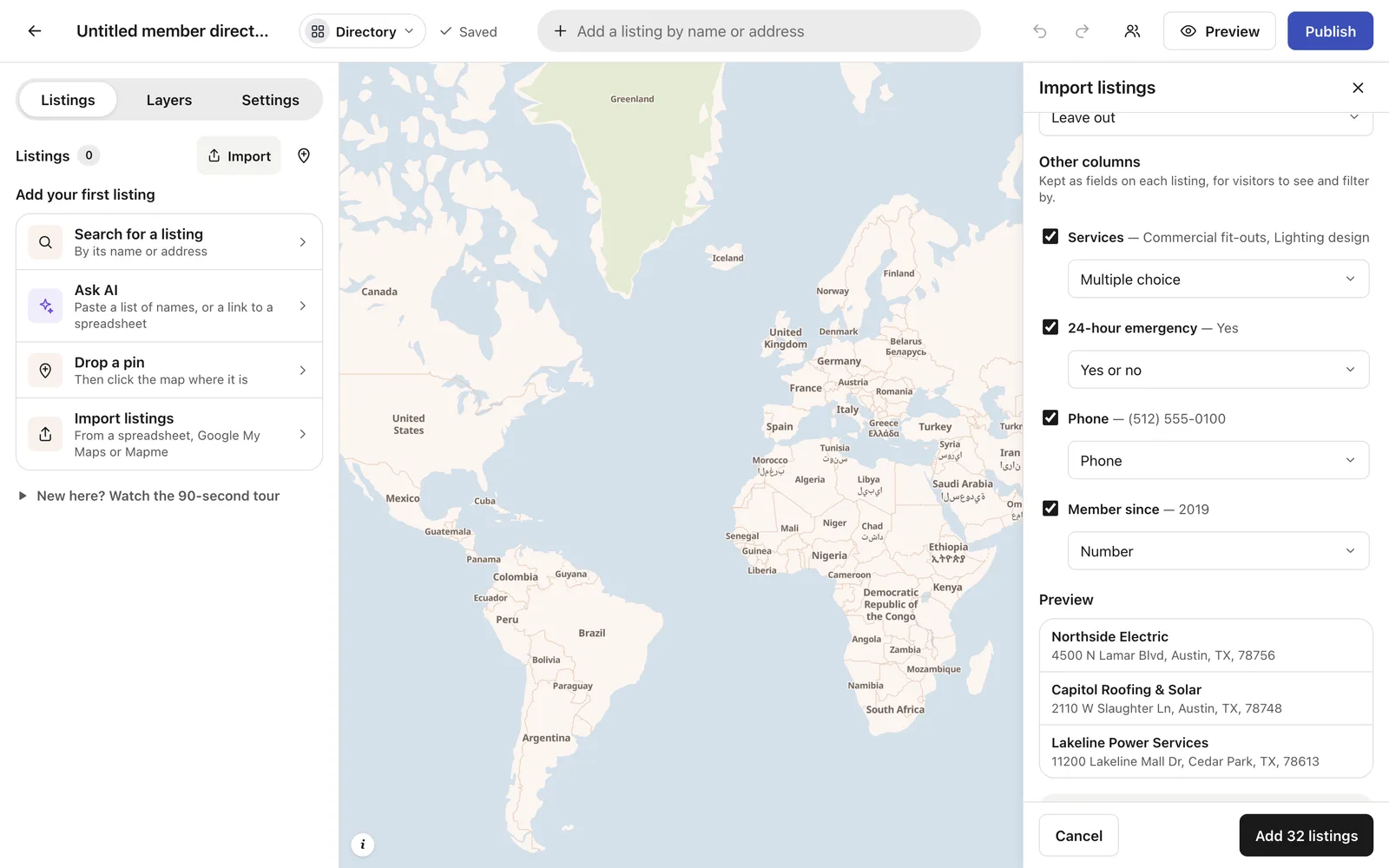
Click Add 32 listings (your number will differ). Every address is found, and the map moves to your members.
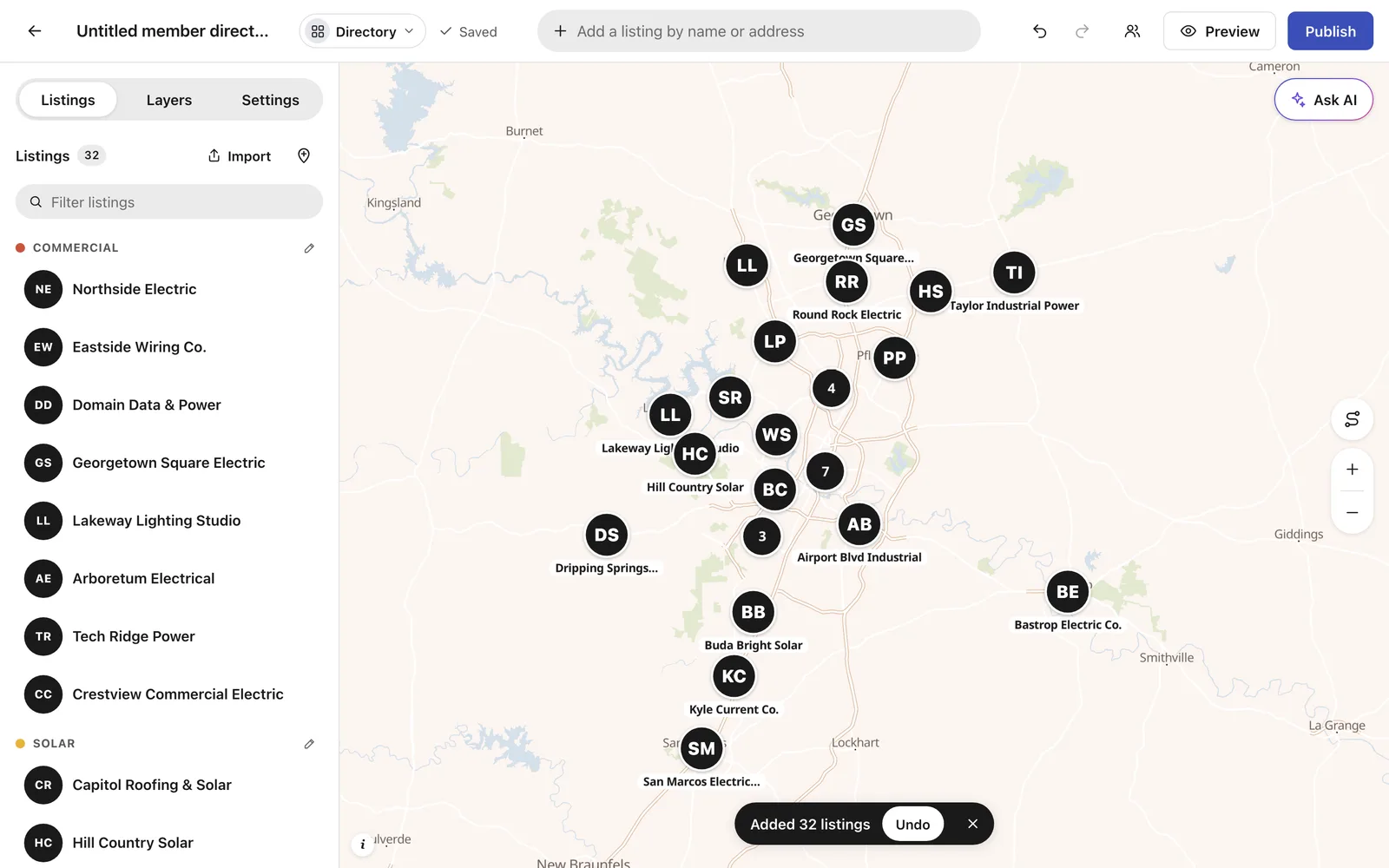
New to importing? Our Excel to map guide covers every option, including rows whose address can't be found.
Step 3: Give it a title, a description and a cover photo
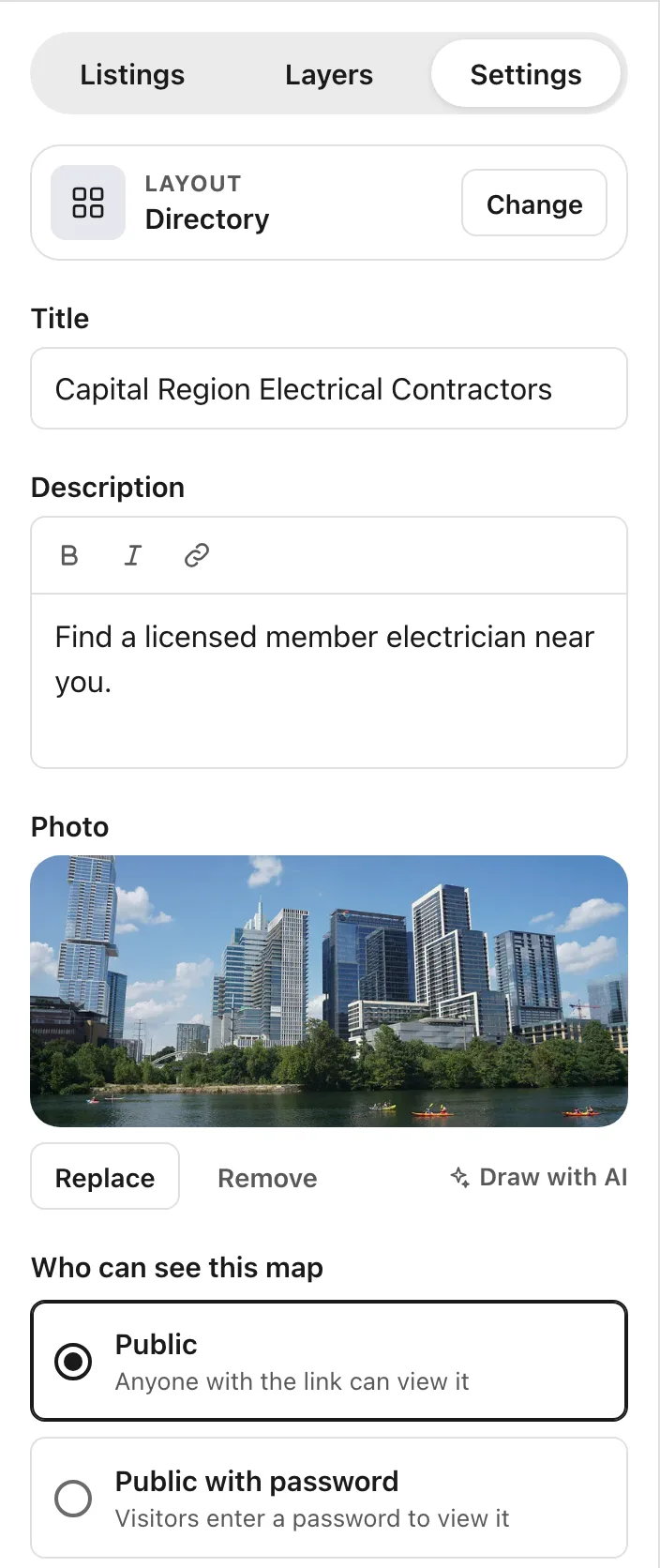
Open Settings. Give the directory a Title your visitors will recognize, a one-line Description ("Find a licensed member electrician near you"), and a Photo: your city, your members at work, or your association's own picture. It shows at the top of the directory and in link previews when someone shares it.
Step 4: Publish, and see what visitors see
Click Publish and open the link. Visitors see your members grouped by specialty, with a button for each specialty and a search box.
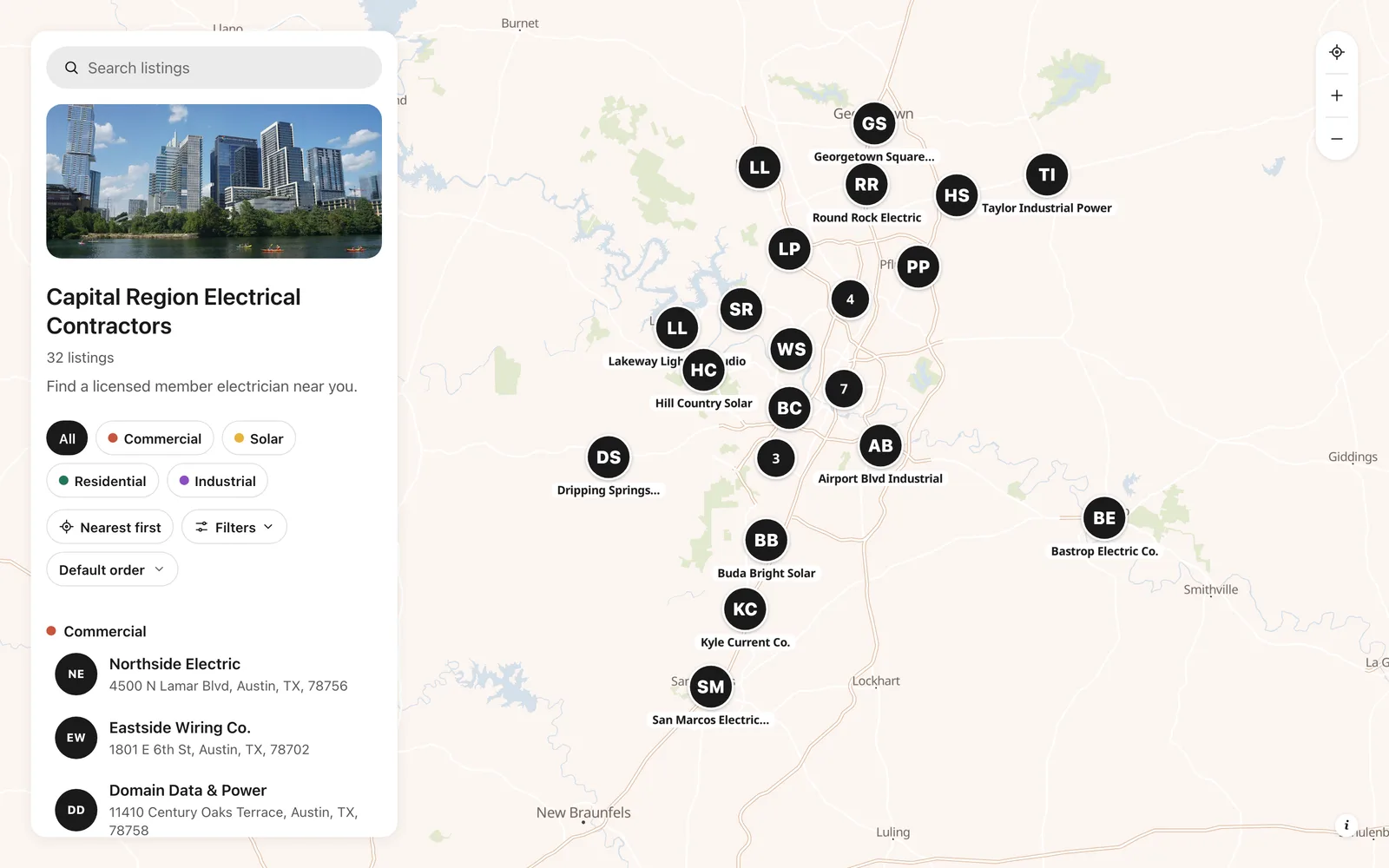
What visitors can do:
- Search by a member's name or by a town: "Round Rock" finds the members there.
- Filter with Filters: by any service (here, EV chargers), 24-hour emergency service, or the year a member joined.
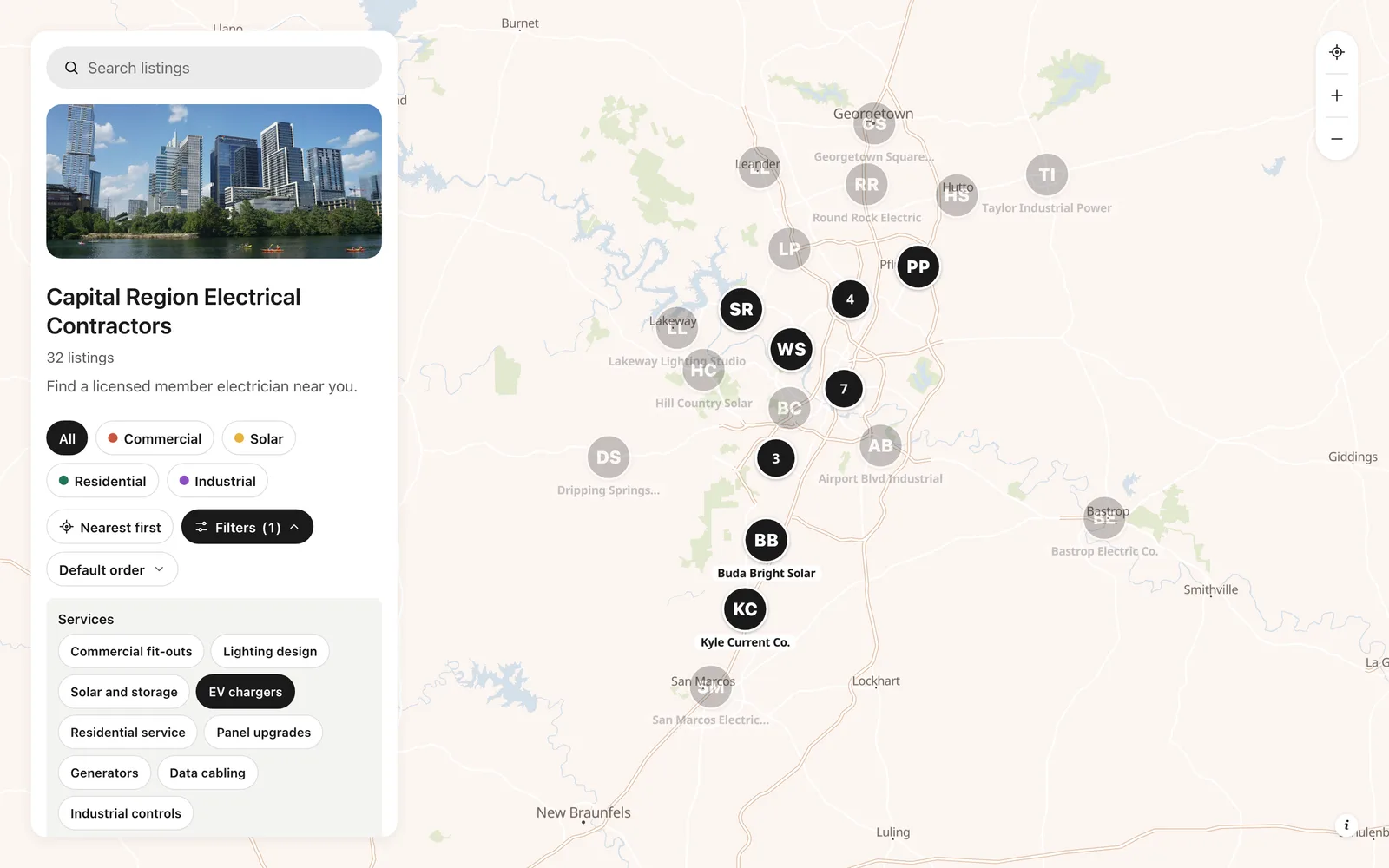
- Sort by Nearest first: the browser asks for their location, and the closest members come first, each with its distance.
- Open a member for everything about them, with Visit website and Directions buttons, and a phone number to tap.
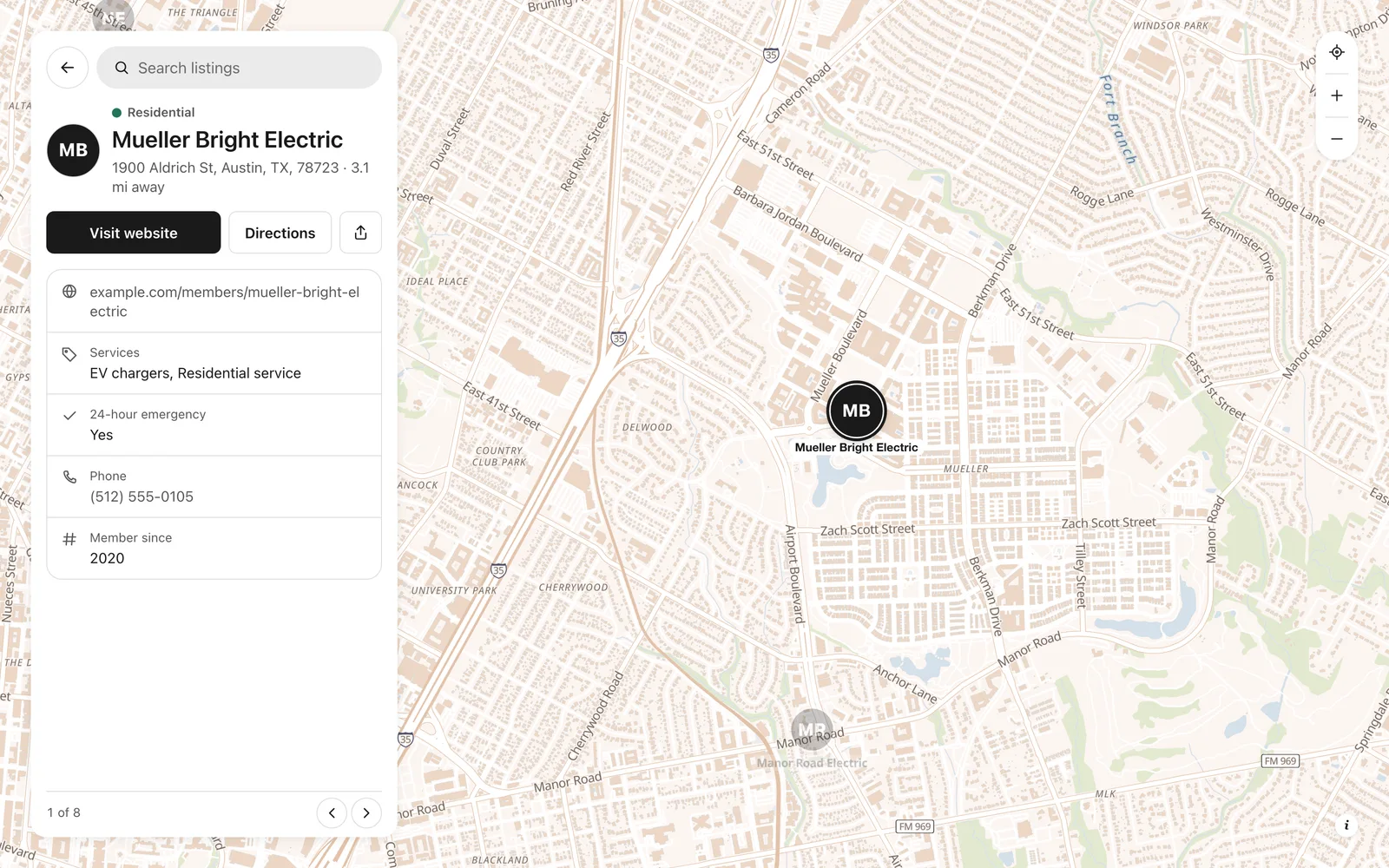
Want a big Call button on every member? In the editor, open the Phone field's settings and switch on Show as a button on each listing.
Step 5: Put it on your association's website
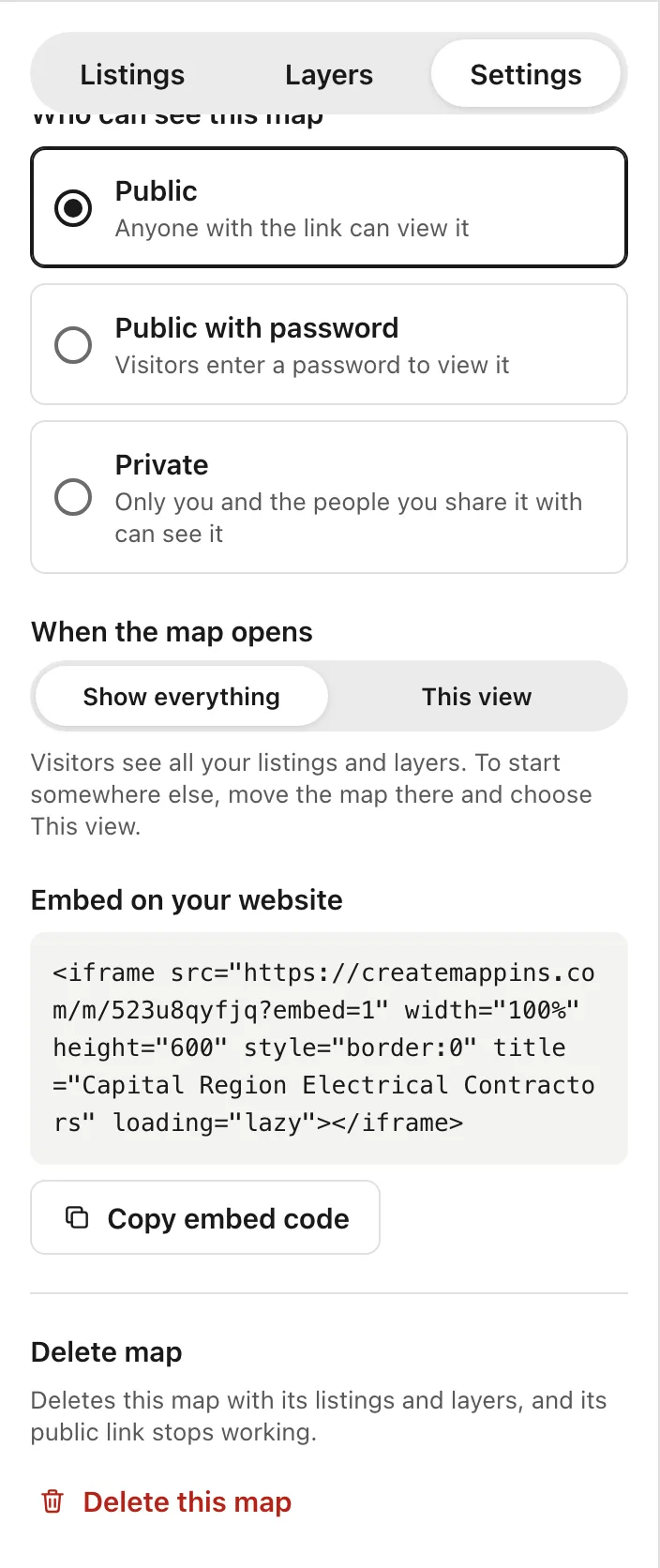
Back in Settings, find Embed on your website and click Copy embed code. Paste it into your website where the directory should go: a "Find a member" page works in WordPress, Squarespace, Wix, Webflow or any site that accepts HTML. The directory works inside the page exactly as it does on its own, search and filters included.
Step 6: Members only? Add a password
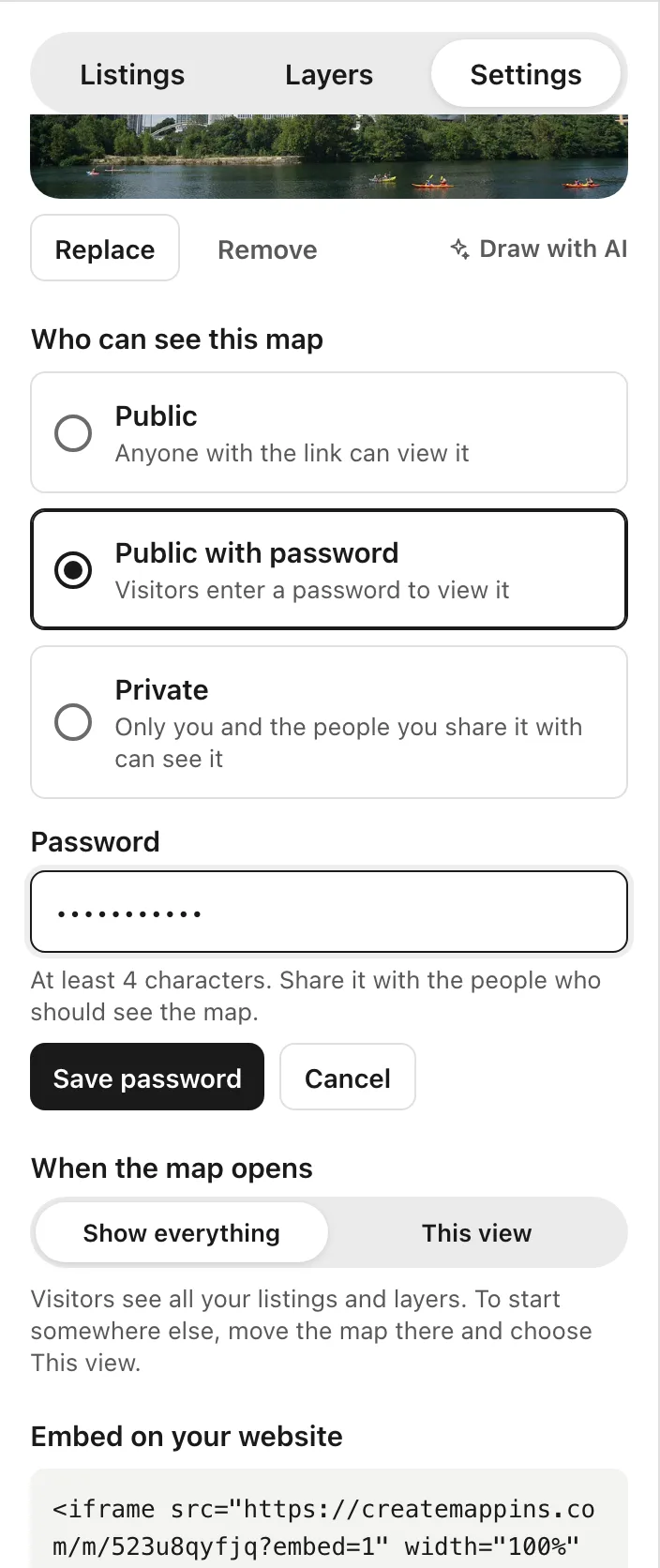
If the directory is a benefit for members rather than a public listing, choose Public with password under Who can see this map, set a password, and click Save password. Visitors are asked for it before they see the directory. Share it in your members' newsletter or portal.
Step 7: Keep it up to date
Members join and leave. When your list changes, export it from your membership software or spreadsheet again and import it the same way. Members already on the map are skipped, and only the new ones are added. Columns with the same names fill the fields already on the map; just check the Category is your specialty column again.
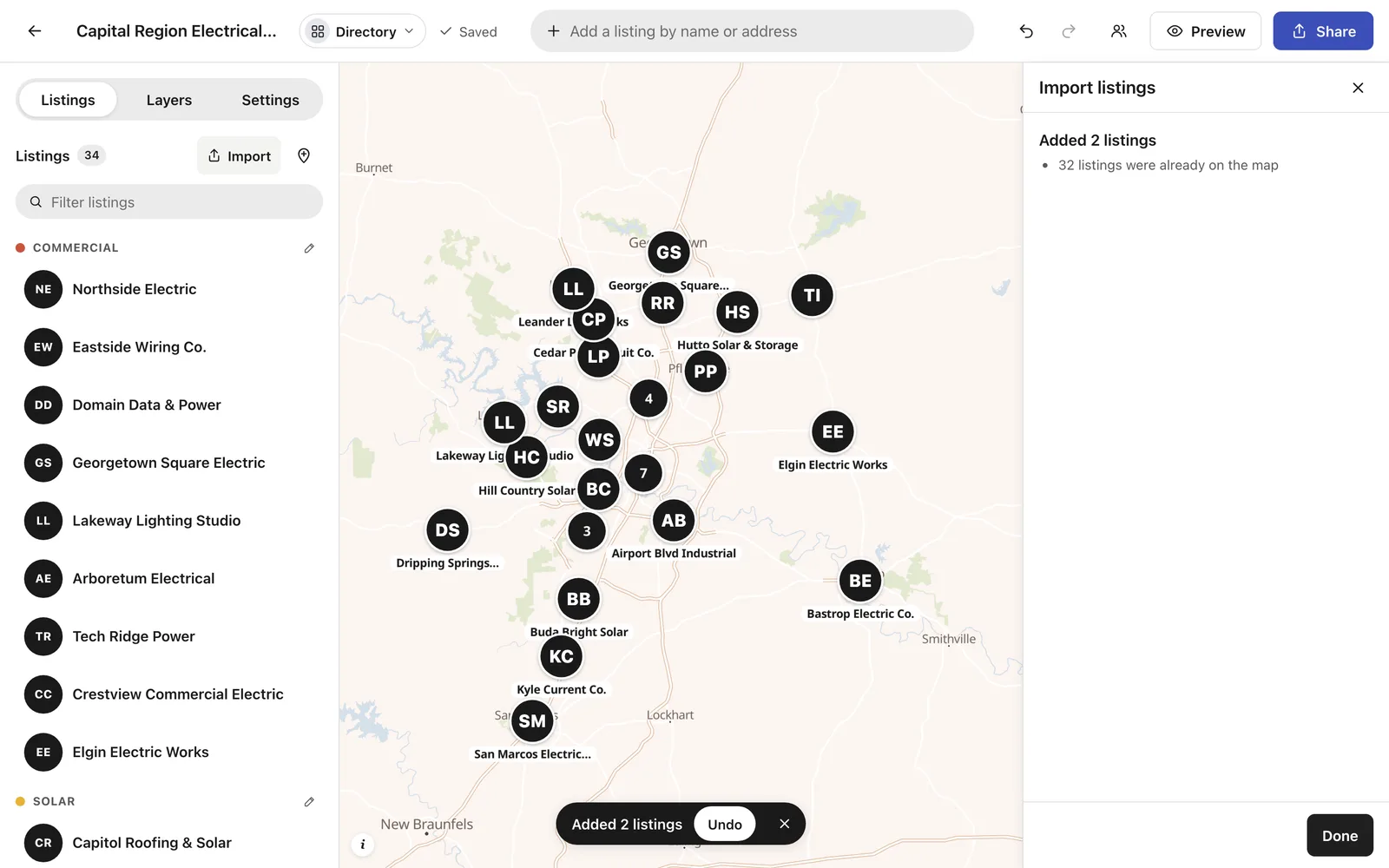
To change one member, click them in the Listings list and edit them. To remove a member who left, open them and delete them.
Tips for a directory people actually use
- Keep categories few. Four to six specialties make good buttons. Thirty don't. Put the long tail in a multiple-choice column instead, where it becomes a filter.
- Spell values the same way every time. "EV chargers" and "EV Chargers" become two filters.
- Use full street addresses. A ZIP code alone puts a member in the middle of the ZIP code area, not at their door.
- Add logos. Open a member and add their logo, and it shows on their pin and in the list instead of their initials.
- Link to it from the menu. A directory people can't find doesn't help anyone: put "Find a member" in your website's main menu.
Other ways to build a member directory map, and when they fit better
- Your membership software's directory (Wild Apricot, MemberClicks, Glue Up and others often include one) is the natural choice if members update their own profiles there. Most show members as a list, and their map views tend to be basic.
- A WordPress directory plugin (such as GeoDirectory or Business Directory Plugin) fits if you want members to sign up and edit their own listings on your site, and you're happy to set up and maintain the plugin.
- Google My Maps is free and fine for a small map, but it has no filters, no "nearest first", and every member is a pin without a list beside it.
If you want a directory that's set up in minutes from the member list you already have, that visitors can search and filter, and that you embed with one line of code, that's where Create Mappins fits. See more on the Trade associations page.